Version 0.20 · September 2026
Paton Takip
User Guide
Every screen of the panel, what it is for and the calculation behind it. The numbered markers on each screenshot match the list below it; click an image to enlarge it.
No section matches your search.
Getting started
Paton Takip records excavation and haulage trips on site and verifies every trip with a signed, single-use receipt. This guide walks through the office panel screen by screen; using the terminal on site is summarised in a separate chapter.
How the system works
The receipt is at the heart of the system. The terminal on site records the trip and prints the receipt; whoever hands out fuel, pays cash or confirms the dump scans the same receipt. Every movement of money and material is therefore tied to a trip, and at month end billing is settled on recorded trips, not on tallies.
- Receipts cannot be forged. The QR is signed with a key generated inside the terminal that never leaves the device. The server can only verify it; a photocopy cannot be used a second time.
- Works without internet. With no signal, records queue on the device and are sent automatically once the connection returns. The panel shows how many records each device is holding.
- Trips are cancelled, not deleted. A wrong trip stays in the list together with the reason; every change in the panel is written to the audit log.
Roles and permissions
Every user has a role, and the menus they see in the panel depend on it. The company administrator has the widest access: they create user accounts, reset forgotten passwords and close the accounts of staff who leave (Users).
| Role | Where | What they can do |
|---|---|---|
| Operator | Terminal | Opens trips and prints receipts. Writes the reason on site when a trip is flagged. Cannot sign in to the panel. |
| Station | Phone / panel | Only verifies receipts and closes them as used (fuel, cash, dump). Does not see the trip list. |
| Supervisor | Panel | Sees every report; cancels trips, reviews and closes anomalies. |
| Accounting | Panel | Sees reports and the account ledger; enters debits and collections, posts billing to the ledger, verifies receipts. Cannot change definitions or settings. |
| Company administrator | Panel | All of the above, plus user accounts, site, vehicle, tariff and unit price definitions, operating settings and terminals. |
Signing in
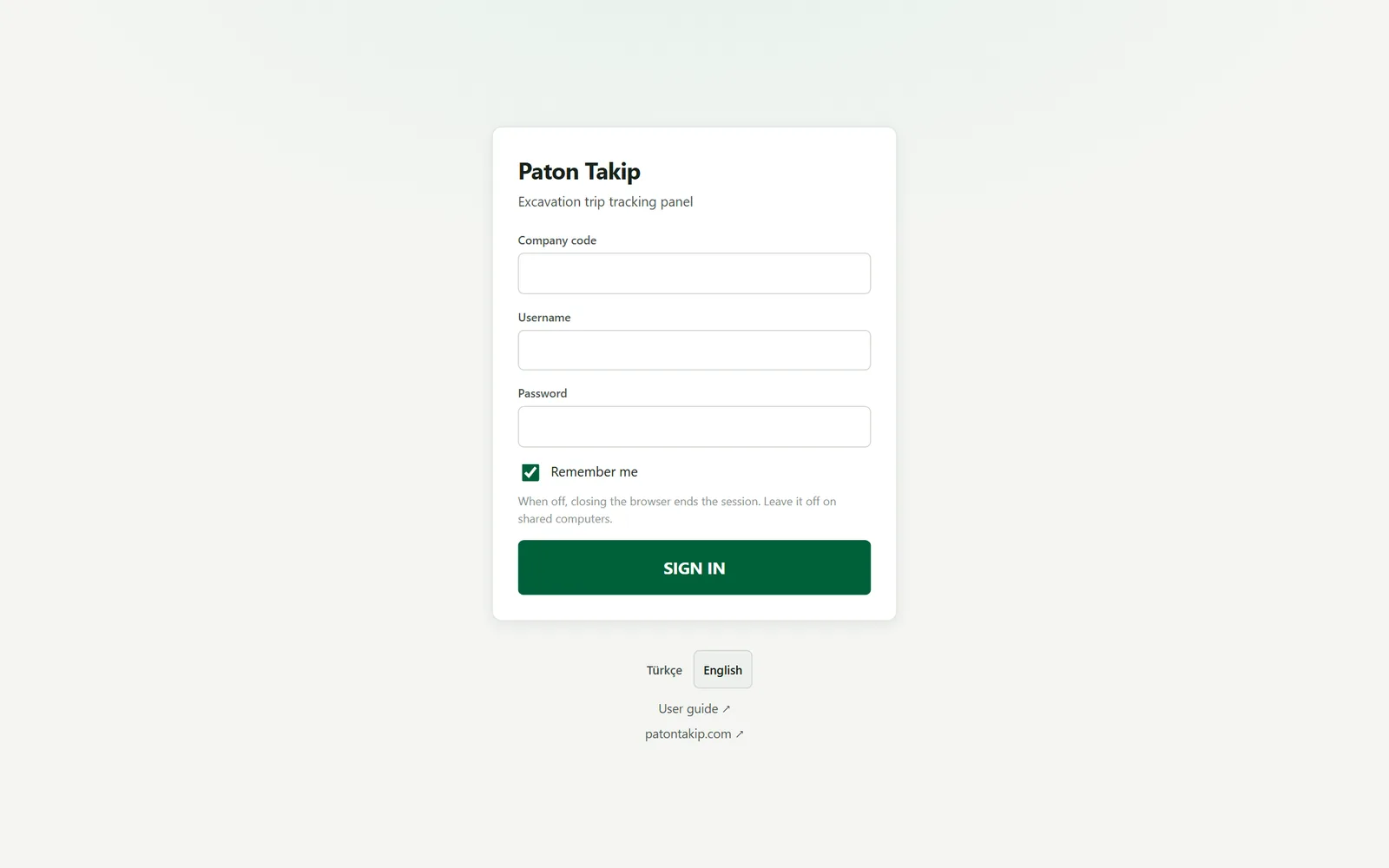
- Open
panel.patontakip.comin your browser. - Enter your company code, username and password. You receive the company code when your account is created.
- On your own computer, leave Remember me on; on shared computers turn it off, so the session ends when the browser is closed.
- If two-step verification is on for your account, you are asked for the 6-digit code from the app on your phone.
Screen layout
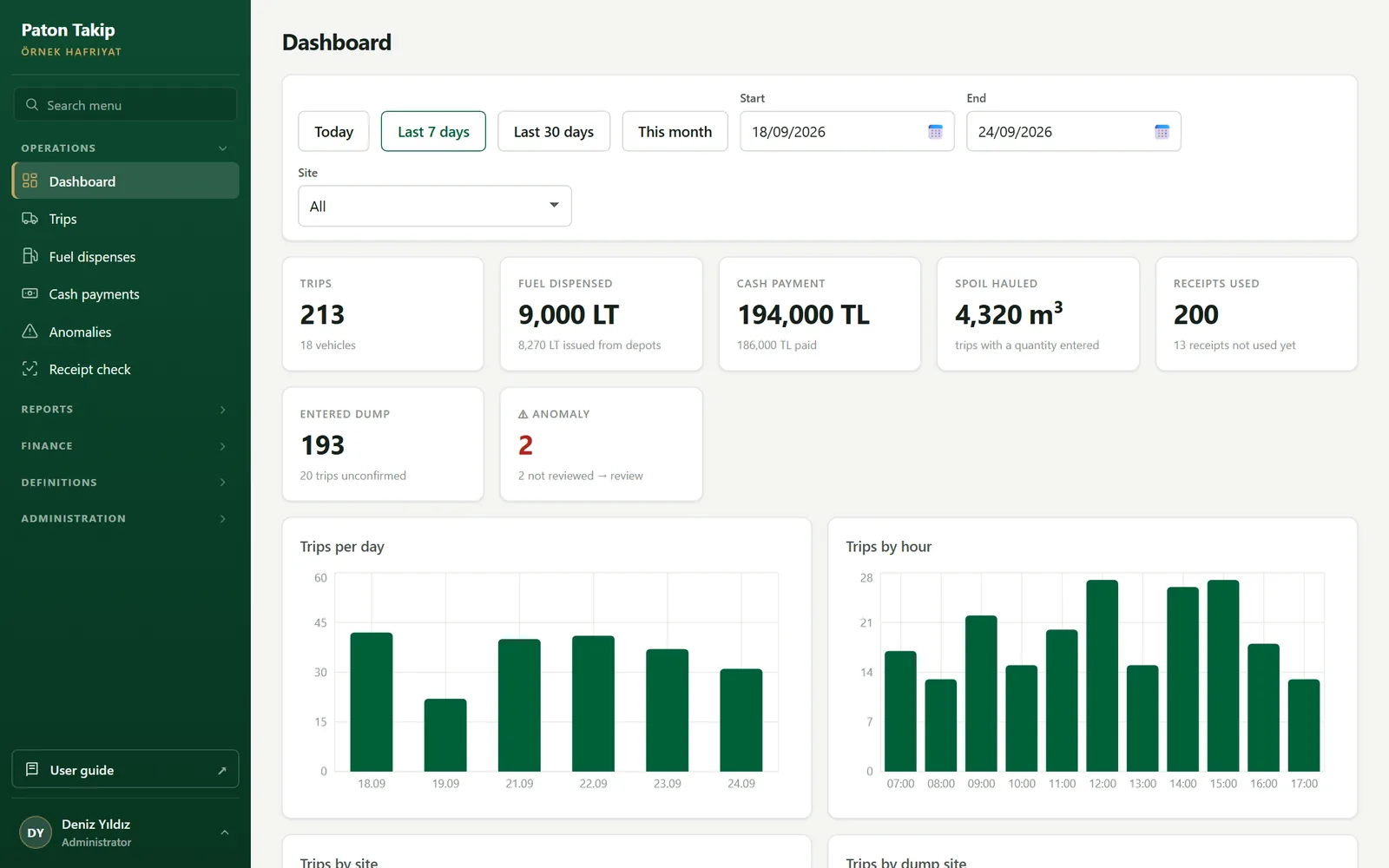 123456
- Menu. Depends on your role: daily lists and the Money, Definitions and Administration groups. The User guide button at the top opens this guide; at the bottom are the theme (light/dark), language, password change and sign-out.
- Quick dates. Today, the last 7/30 days or this month in one tap; you can also type any range into the date fields.
- Site filter. The summary and charts show only the selected site.
- Summary tiles. Trips, fuel dispensed, cash, quantity hauled, receipts used and trips that entered the dump. The second line shows the difference: “8,270 L dispensed from depots” compares what was printed on receipts with what was actually handed out.
- Anomaly tile. Turns red when there are unreviewed anomalies; click it to open the Anomalies screen.
- Charts. Trips per day and per hour, breakdowns by site, dump site and material, and the vehicles with the most trips.
Daily work
The screens where records from the field are followed and corrected.
TripsMenu › Trips
Every trip opened on site. The list is paged; click a column header to sort.
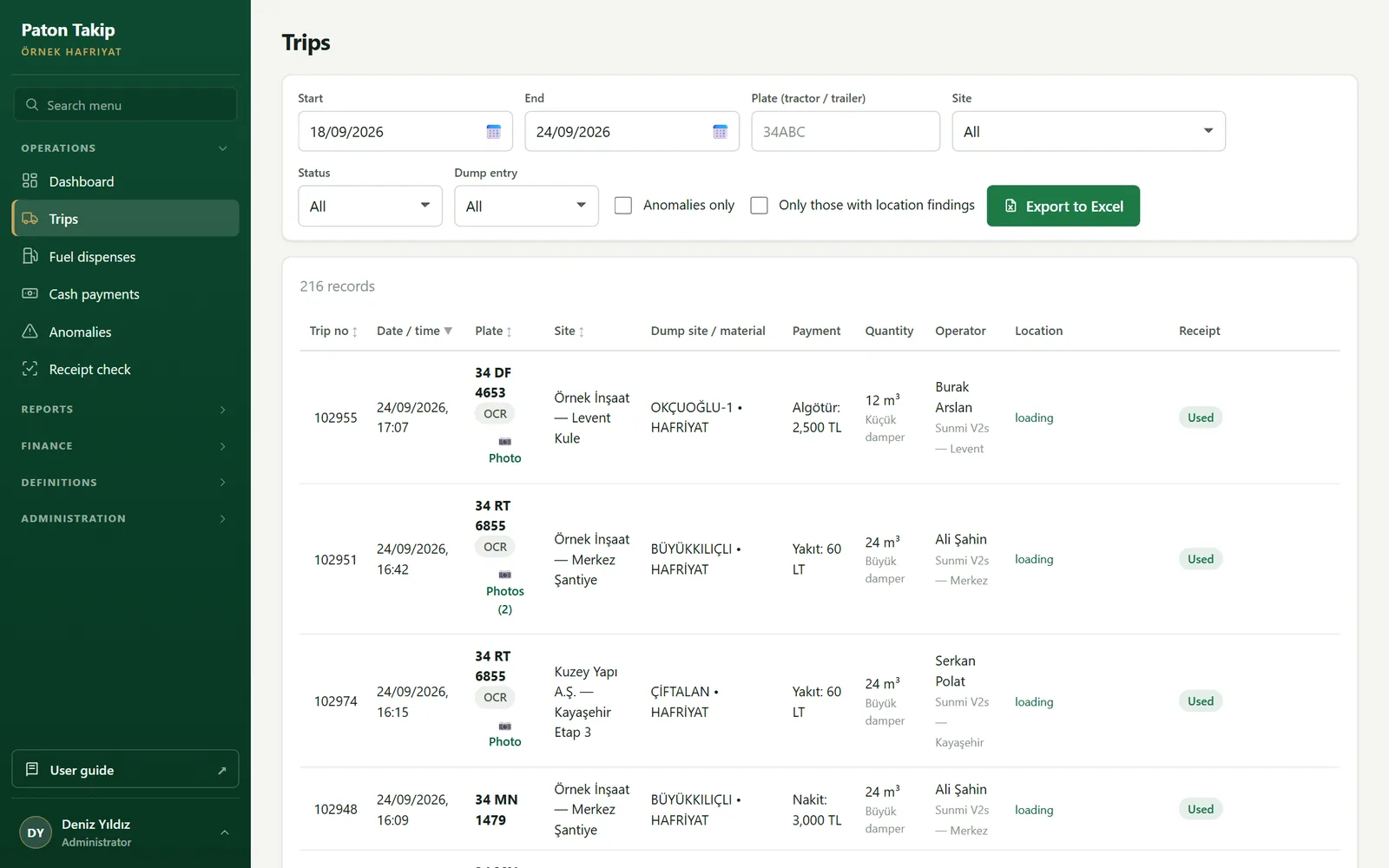 123456
- Date range. Today’s trips by default.
- Plate search. Finds trips by truck plate or trailer plate.
- Dump entry. Choose “Not entered” to keep only trips not confirmed at the dump site — the first list to check before billing.
- Anomalies only / location findings only. Filters out the questionable trips.
- Export to Excel. Exports with the filters on screen.
- Location. Where the trip was opened; a warning badge appears if it is outside the usual area.
What the badges on the rows mean:
| Badge | Meaning |
|---|---|
| OCR / manual | Whether the plate was read by the camera or typed by hand. |
| Used | The receipt was scanned at the station; fuel or cash was handed out. |
| ⚠ | Anomaly: the same plate took a second trip within a short time. |
| loading / dump | Location finding: the trip was opened/confirmed outside the usual location of the site or dump site. |
| Cancelled | The trip was cancelled; the reason and who cancelled it are shown. It is left out of all amounts. |
Cancelling a trip (Supervisor, Administrator)
- Click Cancel on the trip’s row.
- Enter the reason (e.g. “Wrong plate entered”). The reason is required and written to the audit log.
- Confirm. The trip stays in the list with the Cancelled badge and drops out of billing and reports.
Fuel dispenses and cash paymentsMenu › Fuel dispenses / Cash payments
Fuel and cash handed out at the station against a scanned receipt. Every row is tied to a receipt and a trip.
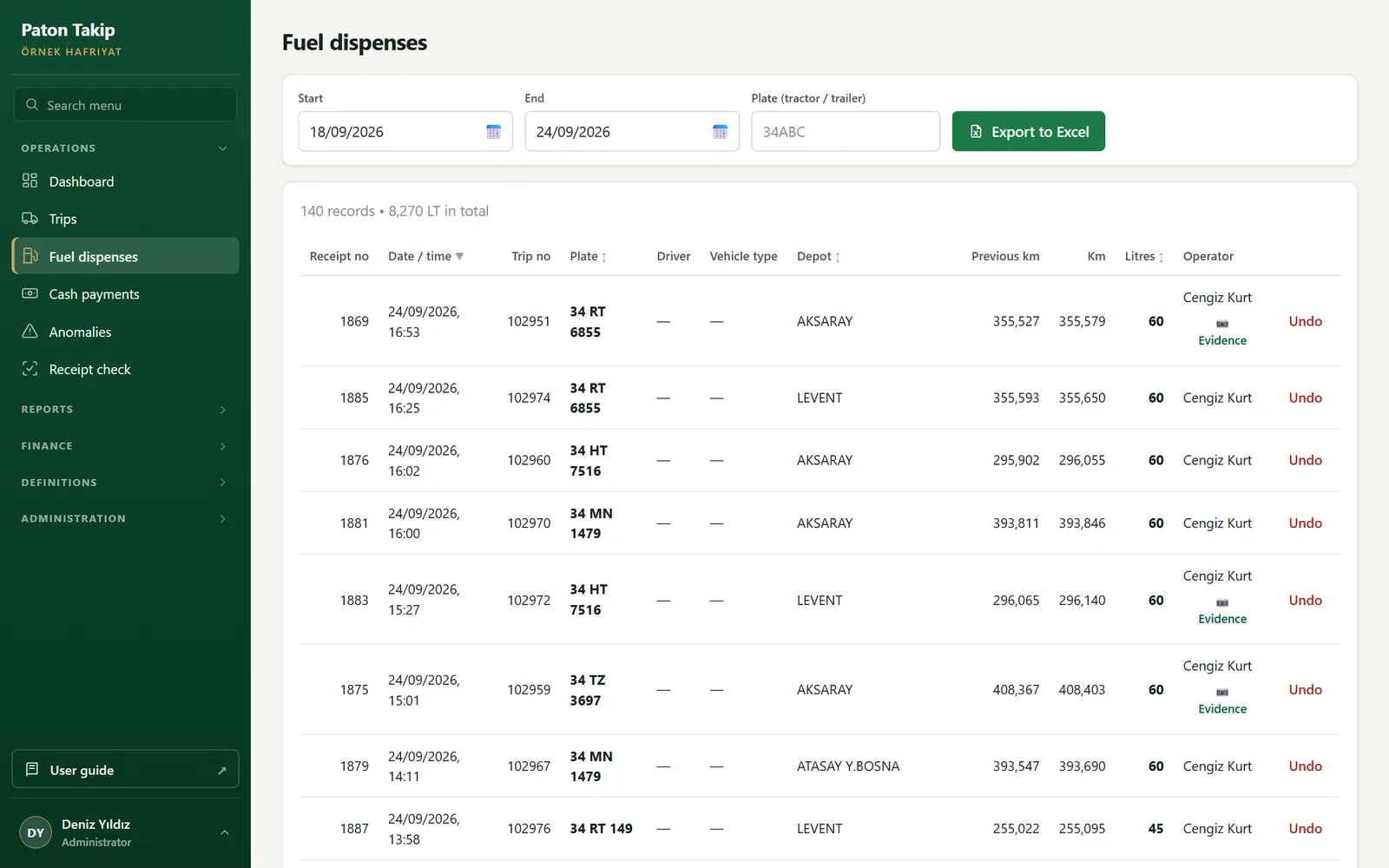
The Evidence link shows the frame of the receipt the terminal scanned during the transaction and where it happened. This answers “was the fuel really given to this truck, and where?”. Typing a trailer plate into the plate box also finds records posted under the truck’s front plate.
AnomaliesMenu › Anomalies
When the same plate takes a second trip within the window set in Settings (40 min by default), the terminal asks the operator why; the trip is still recorded but listed here.
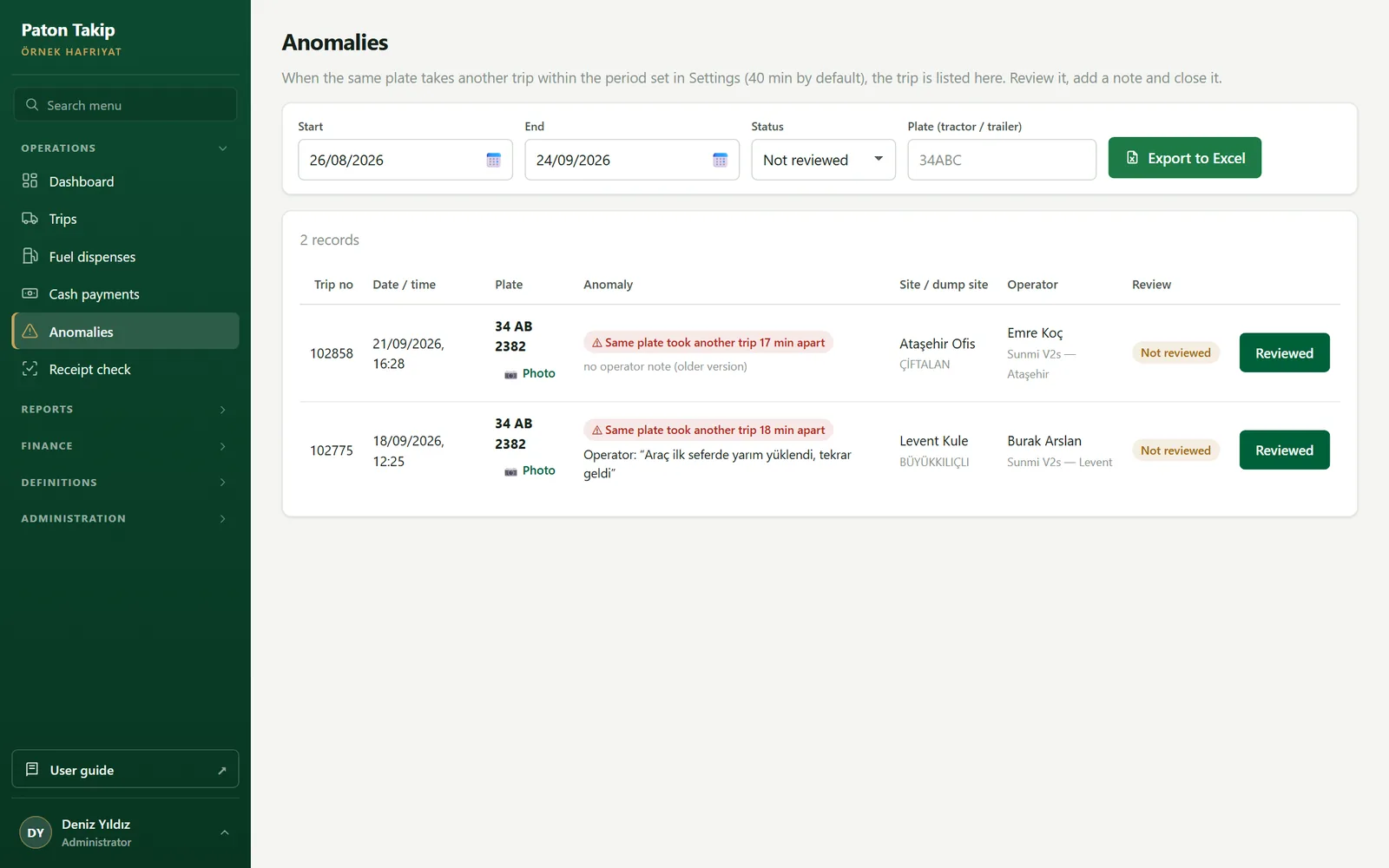 123
- Status. Only unreviewed anomalies by default.
- Anomaly and the operator’s note. The reason written on site appears in quotes.
- Reviewed. Add your note and close it; who closed it and when is recorded.
Receipt checkMenu › Receipt check
The station attendant’s screen, designed for phones. A receipt is verified only by its QR code.
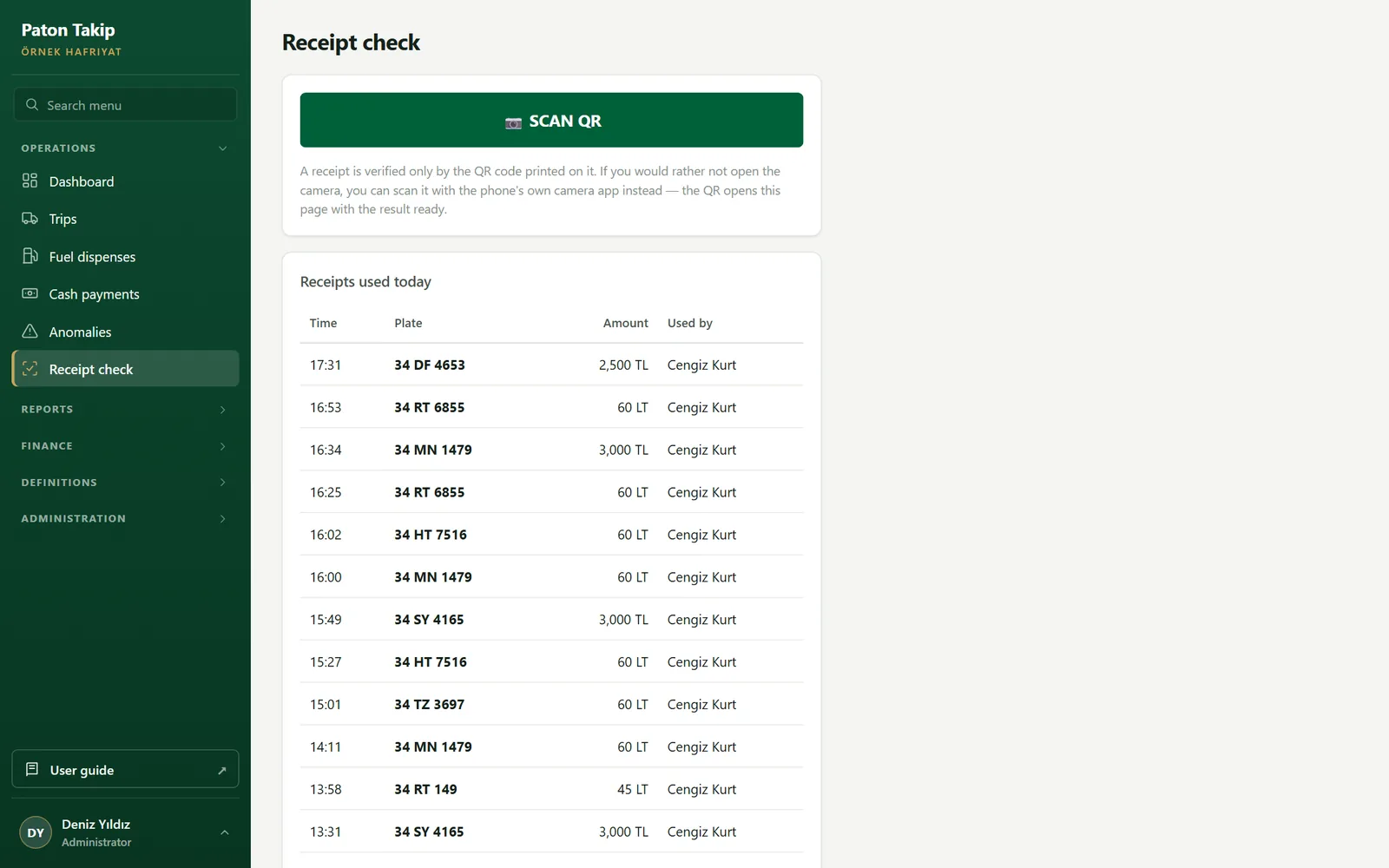 12
- Scan QR. The camera opens; the result appears as soon as the QR is in the frame.
- Receipts used today. Time, plate, amount and who scanned it.
| Result | What to do |
|---|---|
| ✓ VALID | First scan of this receipt. Hand out the fuel/cash with Mark receipt as used; the receipt is closed. |
| ! USED | This receipt was already used: it shows who used it, when and where. Do not proceed. |
| ✕ INVALID | The signature does not match, or the receipt comes from a revoked terminal. Possible forgery — do not proceed. |
Reports
The screens that measure the operation. All of them work on a date range and export to Excel.
End-of-day archiveMenu › End-of-day archive
The closing summary of every day: day by day, “what happened, what got done”. The archive is calculated from the trips on the fly, so offline trips that arrive later and cancellations are reflected in past days too.
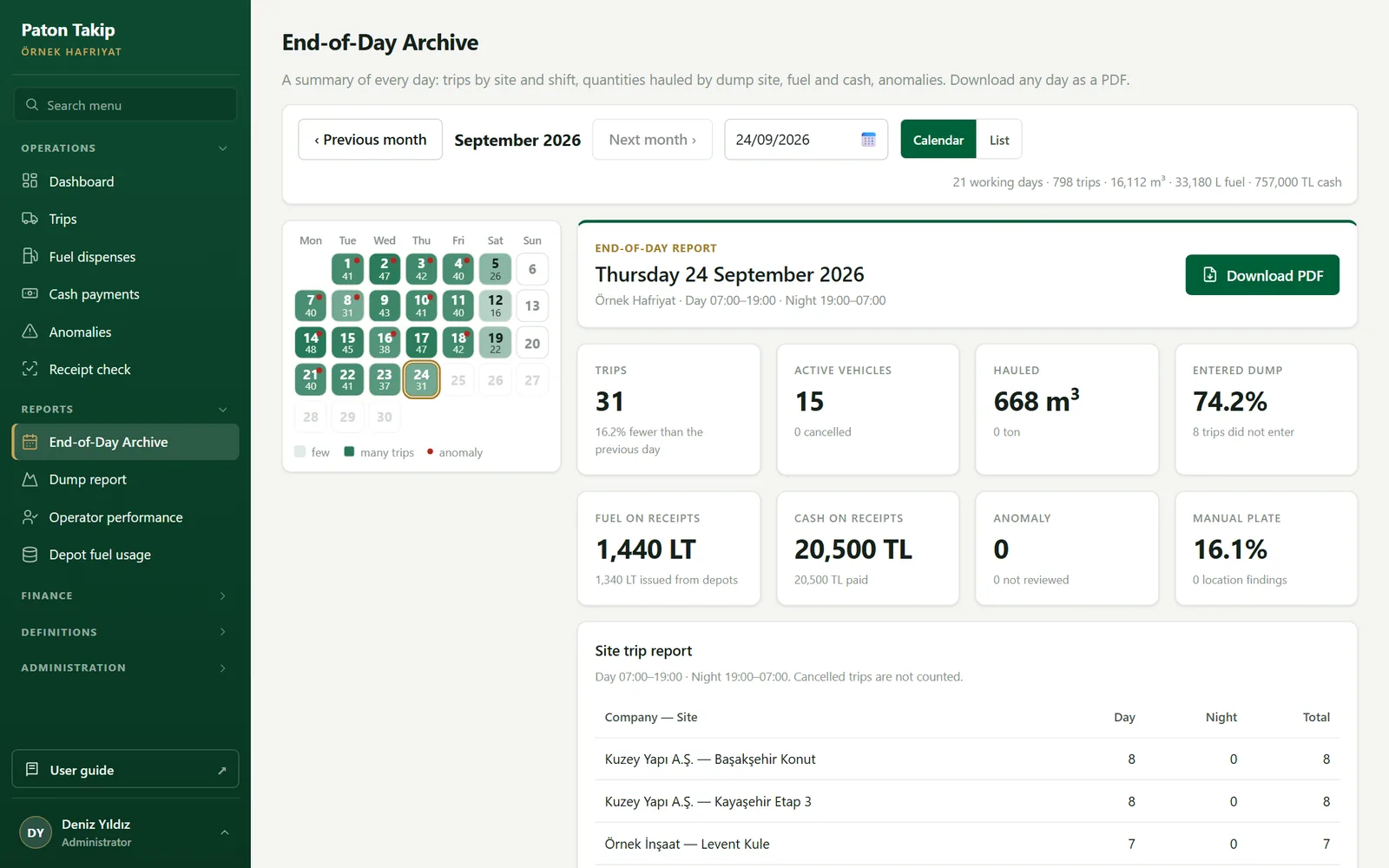 1234
- Calendar / List. In the calendar the colour of a day shows how busy it was and a red dot marks anomalies; the list view stacks the days. Your choice is remembered.
- Go to date. Type any date instead of browsing month by month.
- Selected day. Trips, vehicles, quantity hauled, fuel and cash, with the change from the previous day. Below it: tables by site and shift, dump site, material, operator and vehicle, plus anomalies and cancellations.
- Download PDF. The day’s report downloads as a print-ready PDF, with the same data as the tables on screen.
Dump reportMenu › Dump report
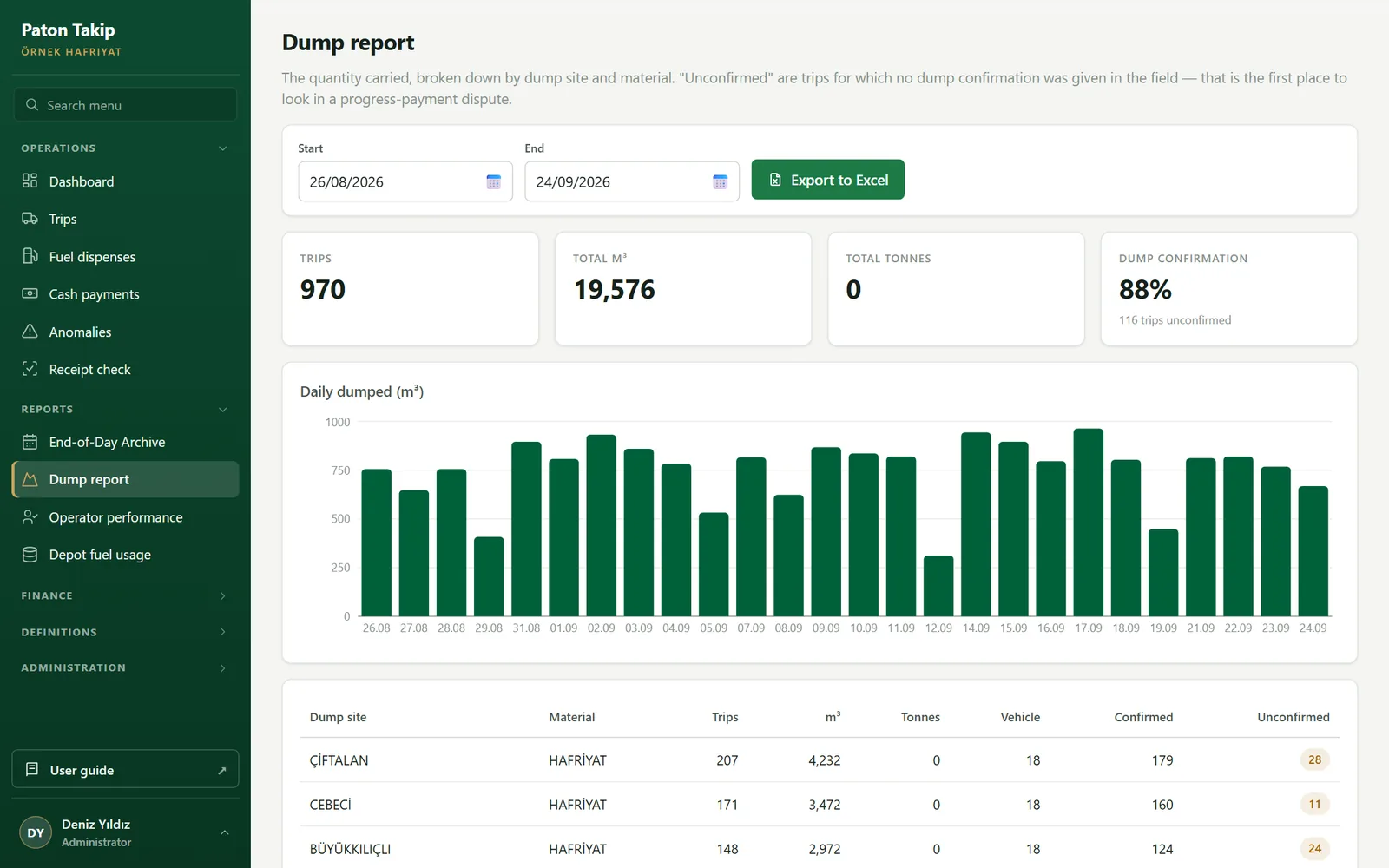
The Unconfirmed column counts trips without a dump confirmation on site. This is the first place to look in billing disputes: not “how many trucks left” but “how many actually entered the dump”.
Operator performanceMenu › Operator performance
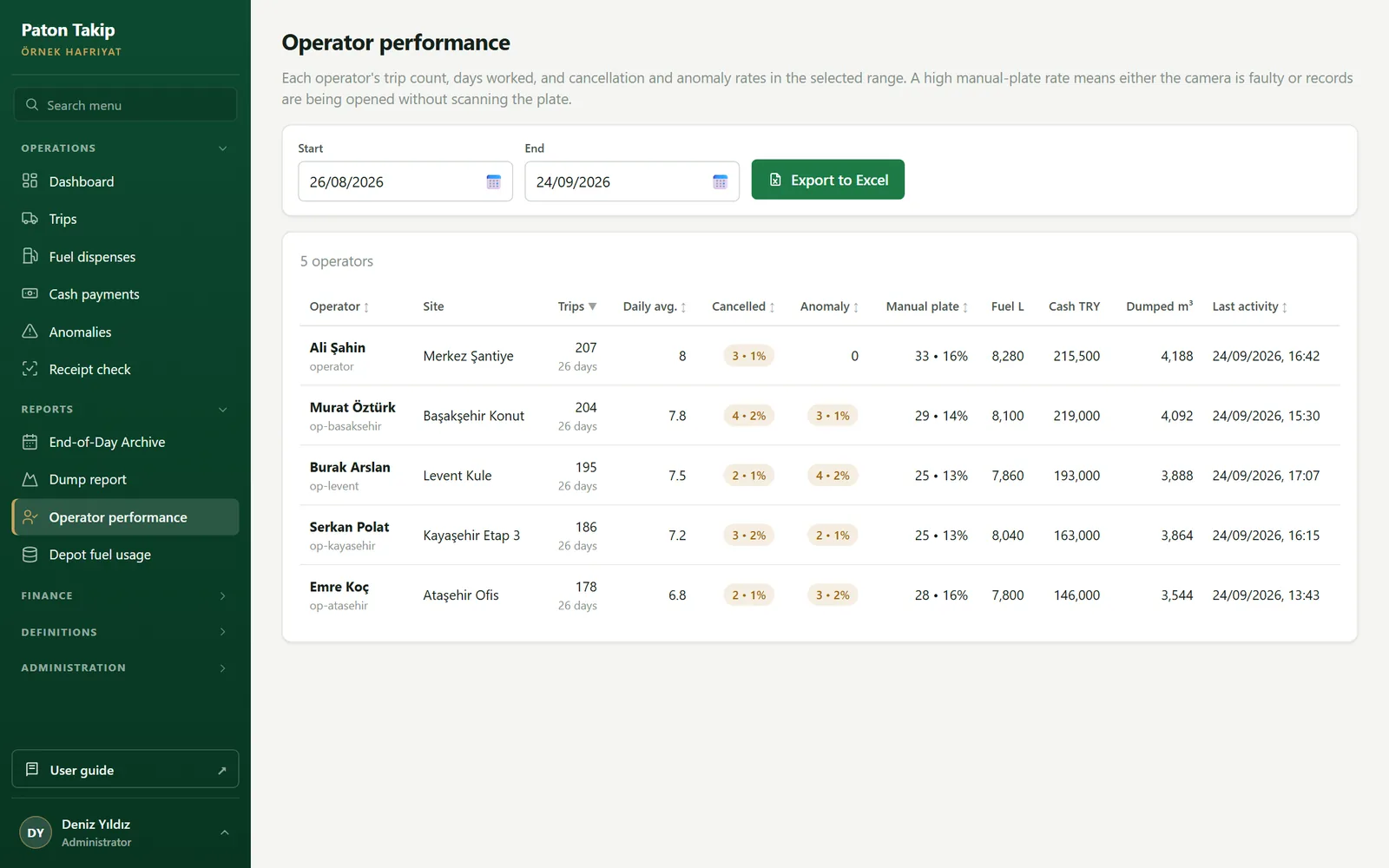
Depot fuel usageMenu › Depot fuel usage
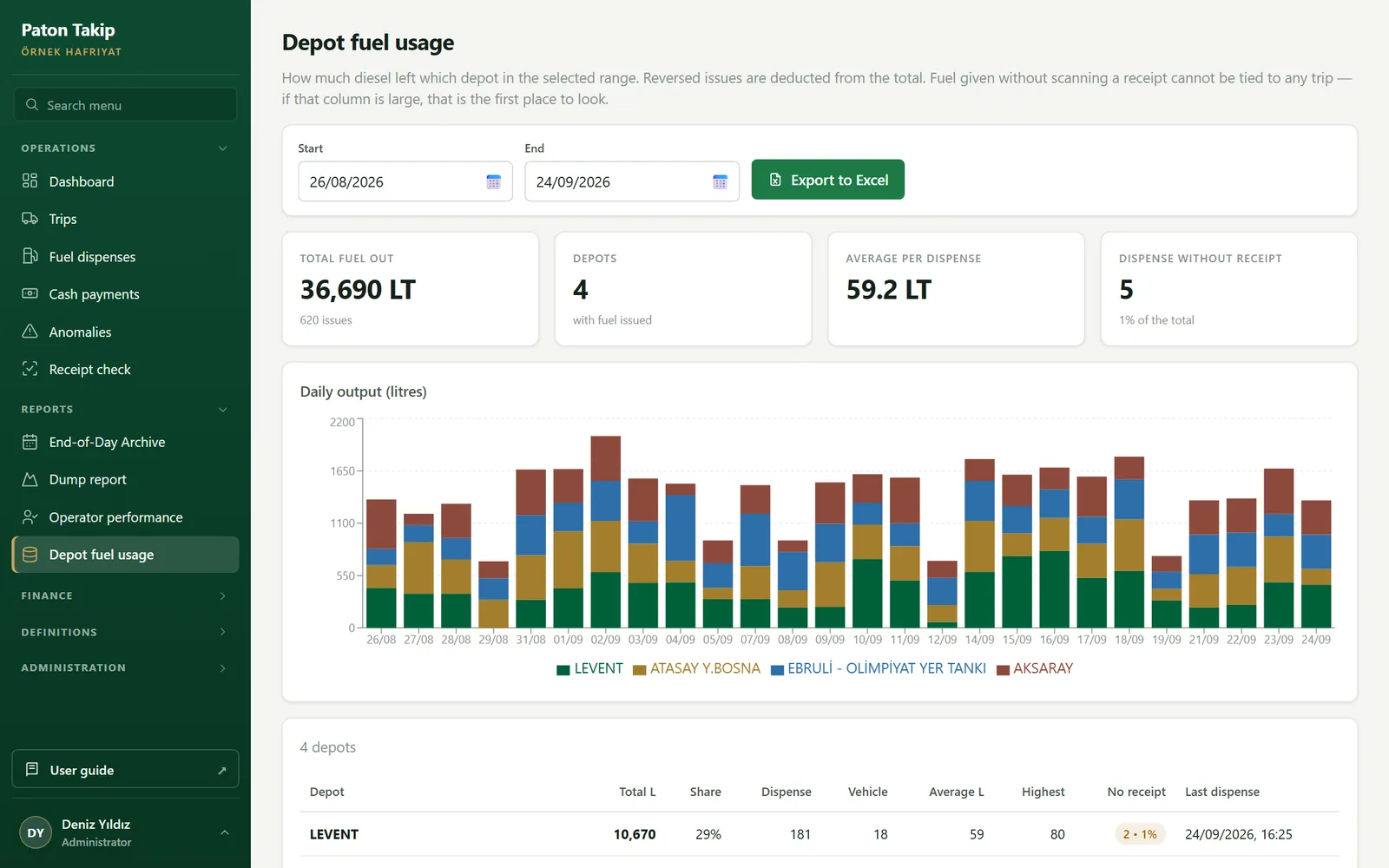
Shows how much diesel left each depot; undone dispenses are subtracted. The Dispense without receipt column is fuel handed out without scanning a trip receipt — it cannot be tied to any trip. If this column is large, that is the first place to look.
Money: prices, billing, subcontractors, ledger
Four screens work together: Unit prices set the amounts, Progress billing calculates what the customer owes, Subcontractor reconciliation what you owe the subcontractor, and the Account ledger tracks invoiced billing and collections.
Unit pricesMenu › Unit prices
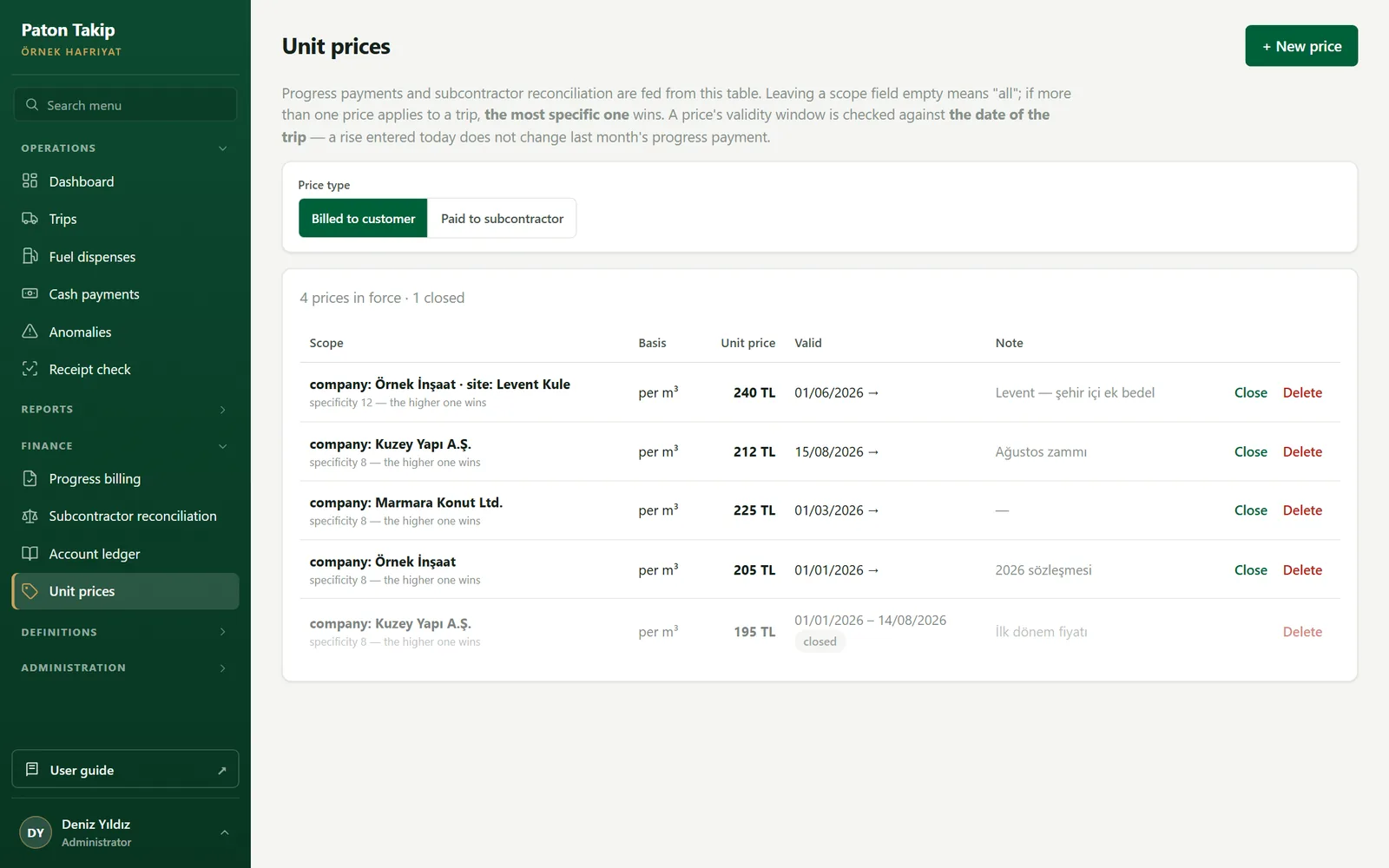 1234
- New price. Adds a price.
- Price type. Billed to customer feeds progress billing; Paid to subcontractor feeds the subcontractor reconciliation.
- Specificity. If several prices match a trip, the one with the higher score wins.
- Close. Ends the price from today on; past periods do not change.
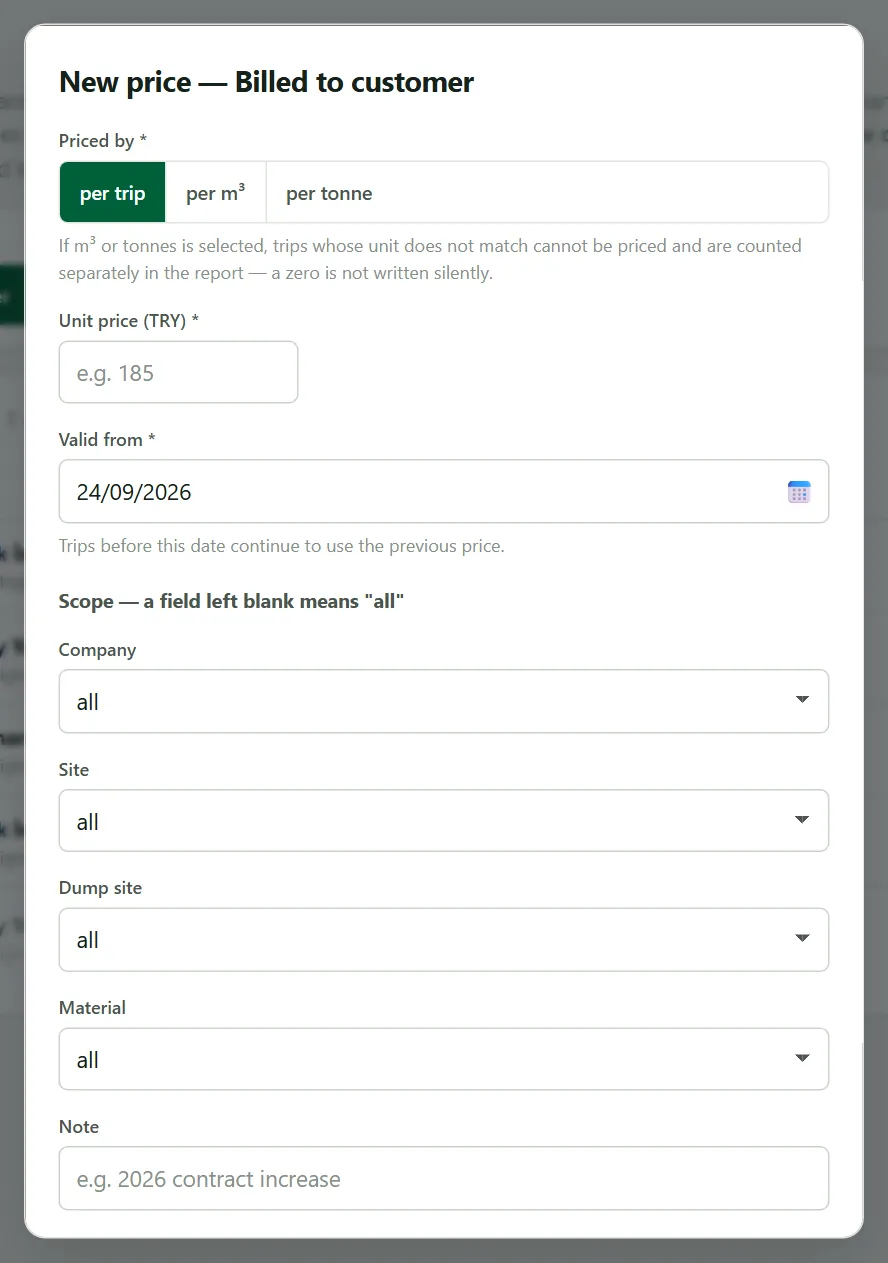 123
- Priced by. Per trip, per m³ or per tonne.
- Valid from. Trips before this date keep being calculated at the old price.
- Scope. Company, site, dump site, material (and subcontractor for subcontractor prices). A field left blank means “all”.
Progress billingMenu › Progress billing
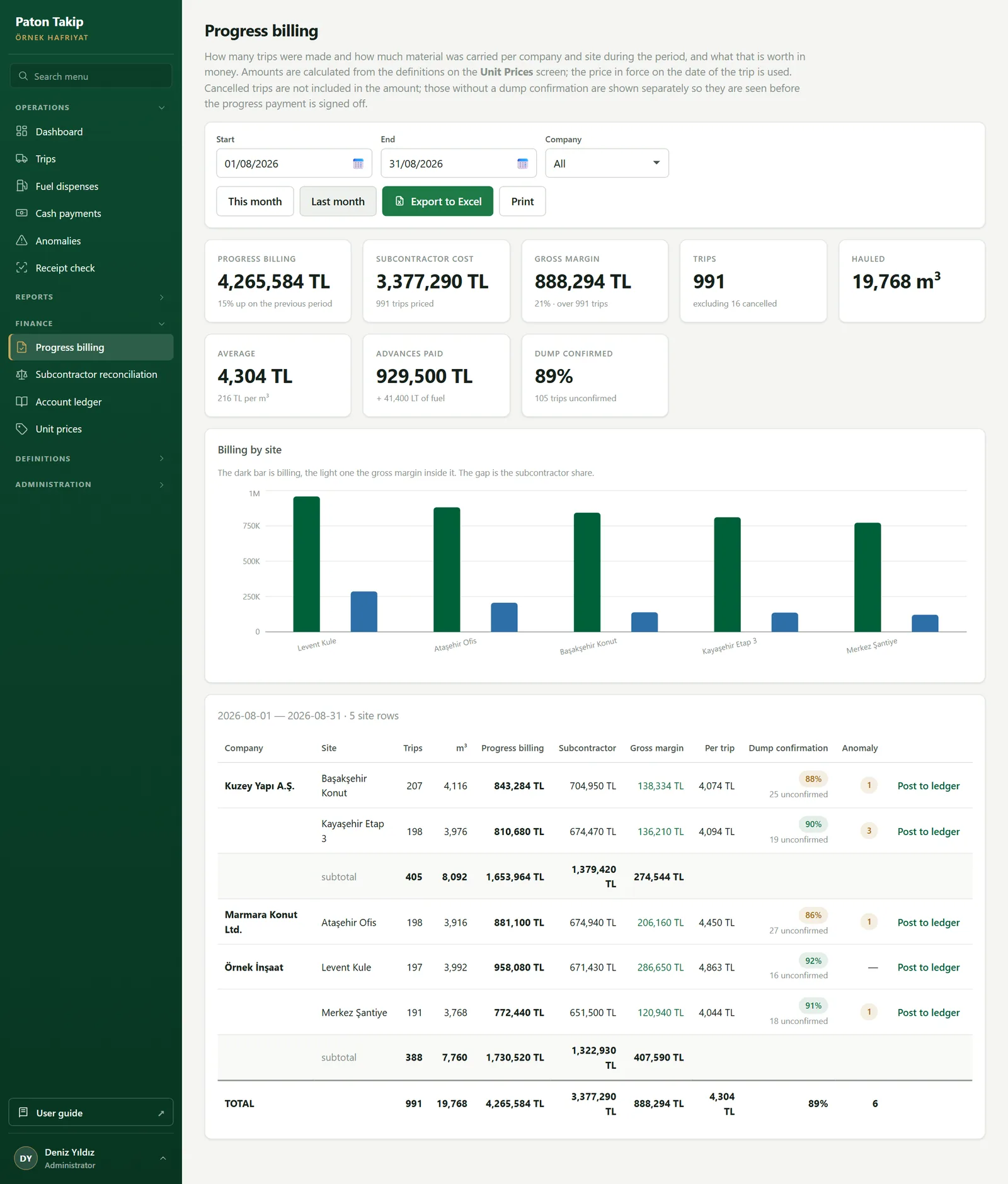
The attachment to the invoice issued to the customer at the end of a period: how many trips were made per company and site, how much material was hauled, and what it is worth.
 123456
- Period. “This month” and “Last month” shortcuts, plus a company filter.
- Gross margin. Billing minus subcontractor cost; calculated only over trips with both prices defined.
- Dump confirmed. Unconfirmed trips are shown separately so they are seen before the billing is signed off.
- By site. The dark bar is billing, the one next to it gross margin.
- Subtotal. The company total for companies with more than one site.
- Post to ledger. Posts the row’s amount as a debit to the customer’s account.
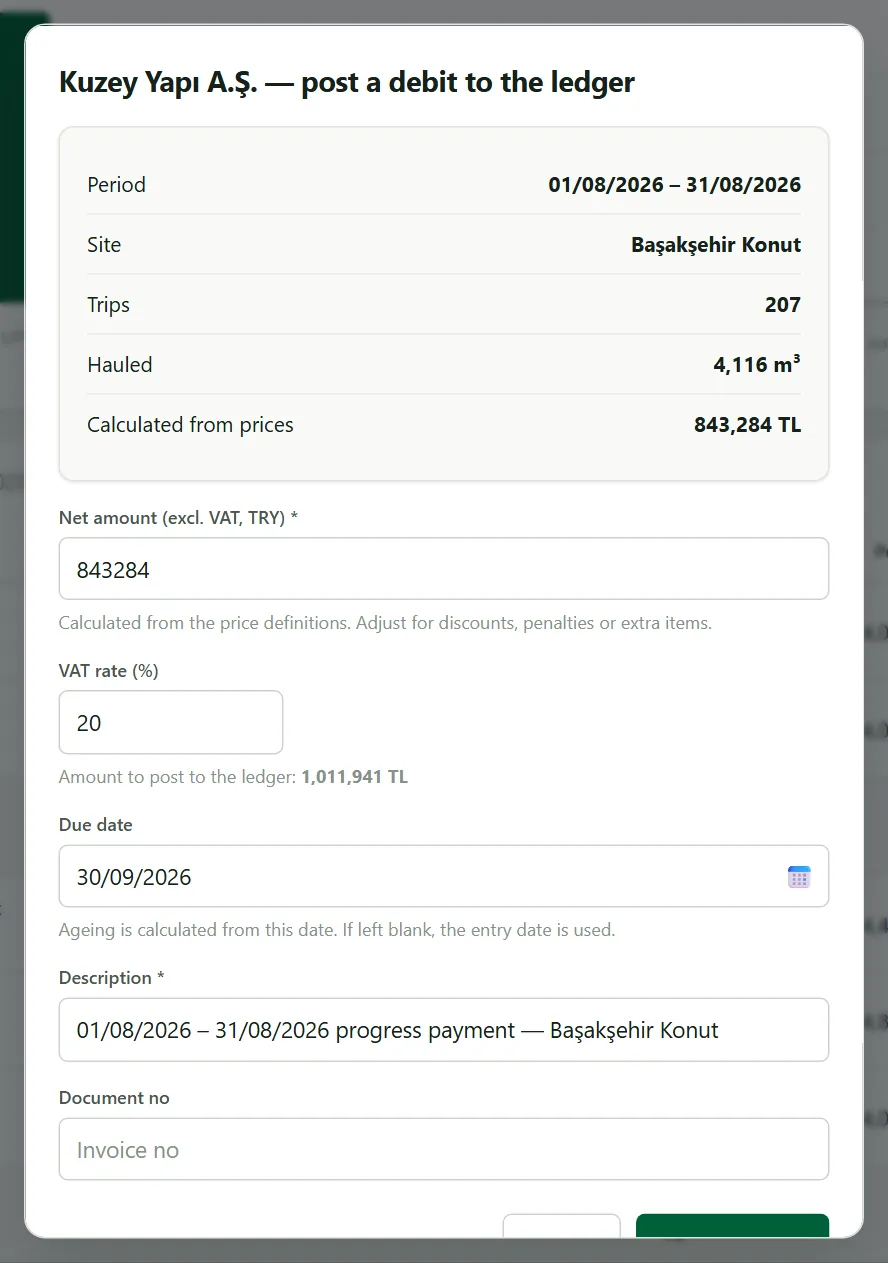 123
- Calculated from prices. The amount the system found; for information.
- Net amount and VAT. Adjust the net amount for discounts, penalties or extra items; the VAT rate is added.
- Due date. Receivables ageing is based on this date.
Subcontractor reconciliationMenu › Subcontractor reconciliation
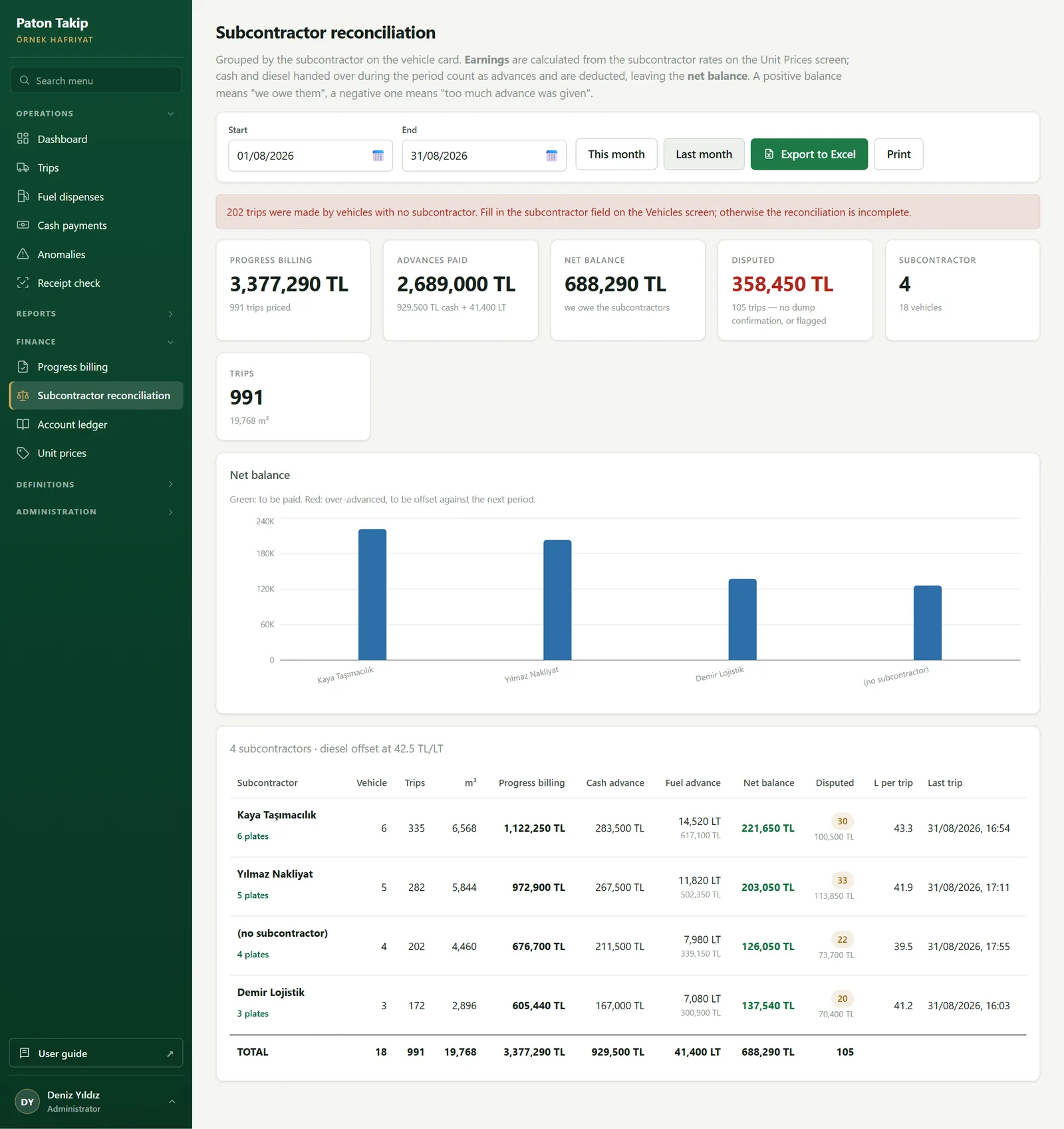
Grouped by the subcontractor on the vehicle record. The reconciliation is a balance both sides need to agree on:
Billing (at subcontractor prices)−Advances paid (cash + diesel)=Net balance
 1234
- Missing data warning. Trips of vehicles without a subcontractor cannot enter the reconciliation; complete them on the Vehicles screen.
- Advances paid. Cash and fuel given in the period; fuel is converted to lira at the diesel price in Settings.
- Disputed. The amount of trips without dump confirmation or with an anomaly flag — so you can say “this much is disputed” at the table.
- Net balance. Positive: we owe the subcontractor. Negative: too much was advanced; it is offset against the next period.
Account ledgerMenu › Account ledger
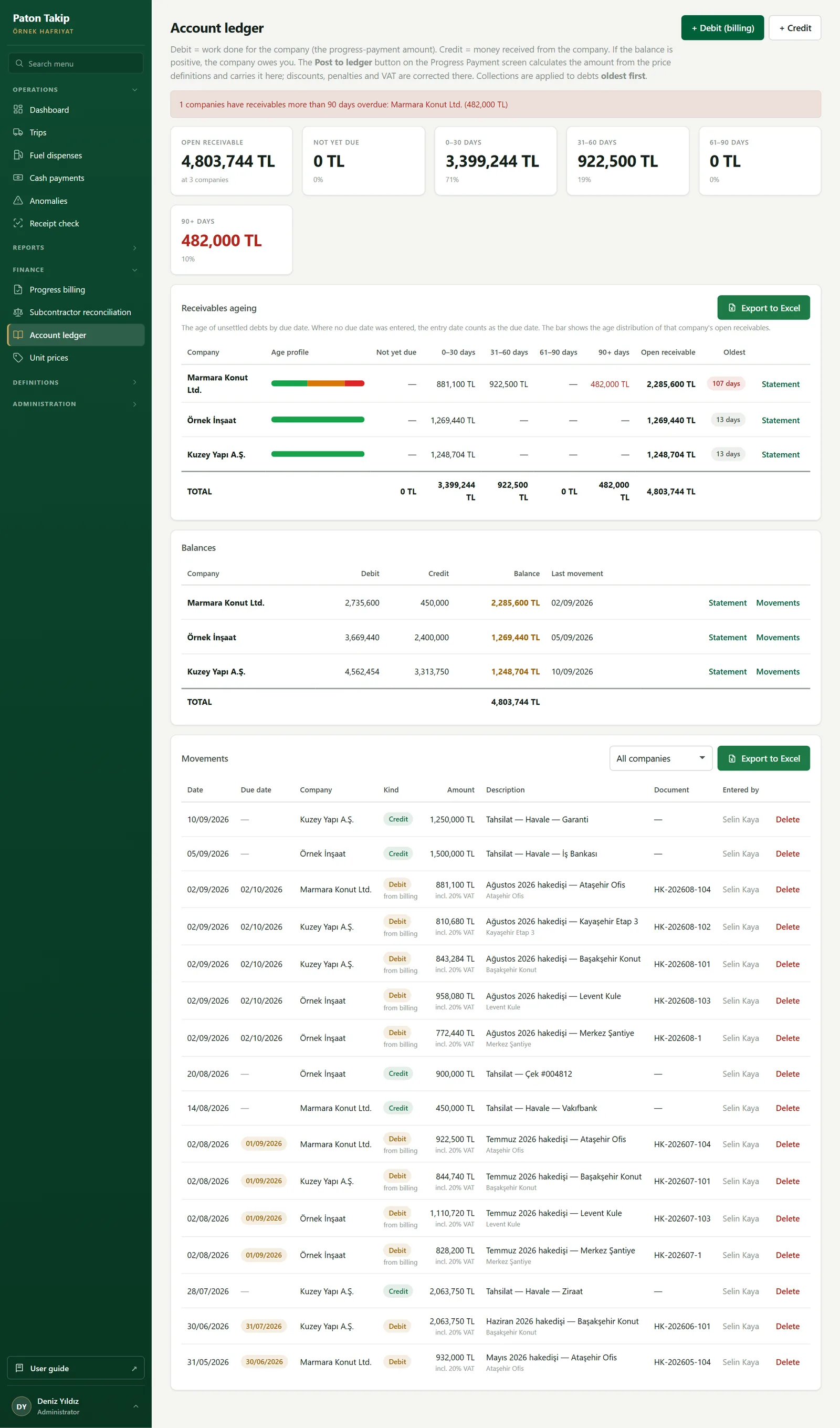
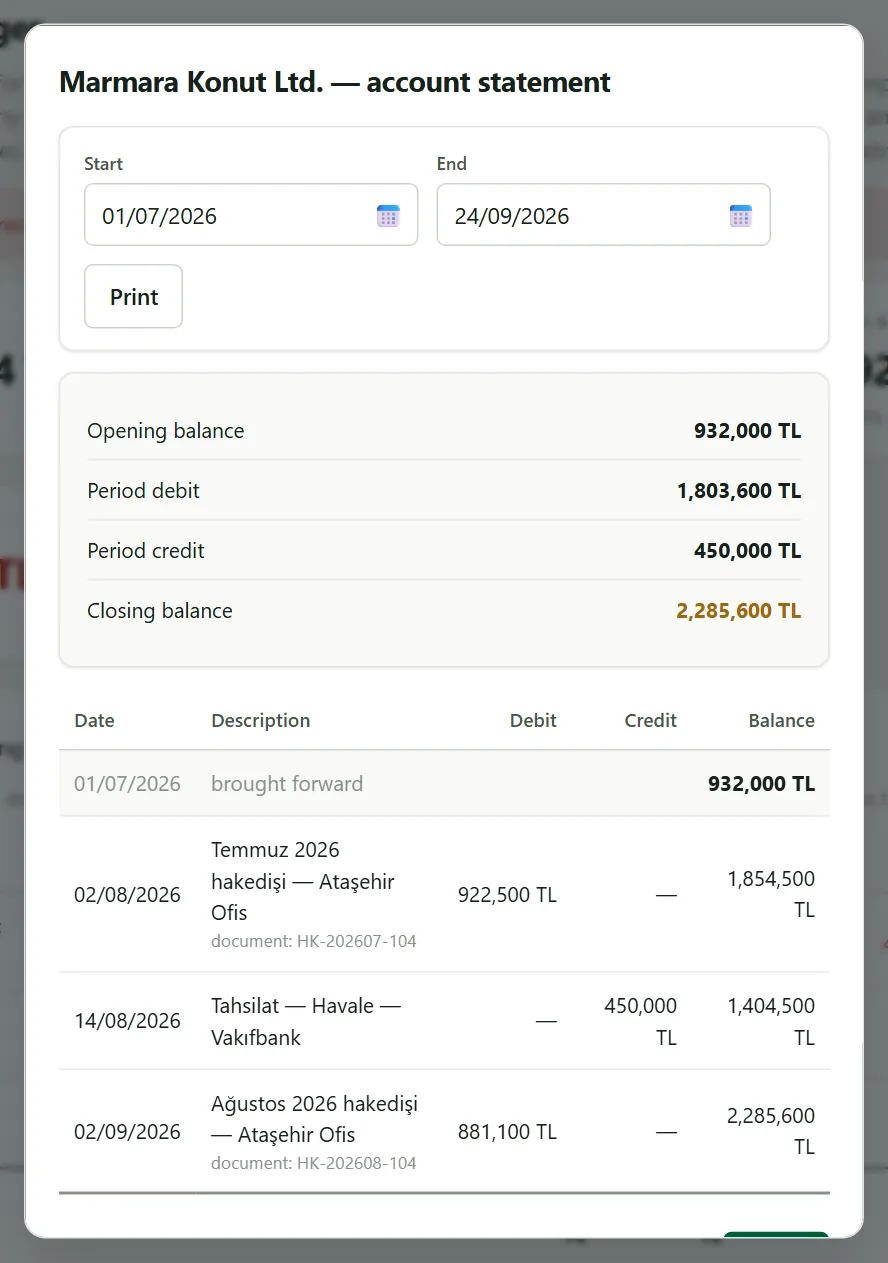
A debit is work done for the company (the billing amount); a collection is money received from it. A positive balance means the company owes you.
 123456
- Add debit / collection. Manual entries; debits from billing are posted automatically.
- Open receivable and age buckets. Not yet due, 0–30, 31–60, 61–90 and 90+ days.
- Receivables ageing. The age breakdown of each company’s open receivable.
- Oldest. Days past the due date of the oldest unpaid debit.
- Statement. Opening balance, movements in the period and closing balance; printable.
- Movements. All of the company’s entries.
Definitions
Everything in the terminal’s lists comes from here. Changes reach the terminals within a few minutes.
Sites, dump sites, materials, depotsMenu › Definitions
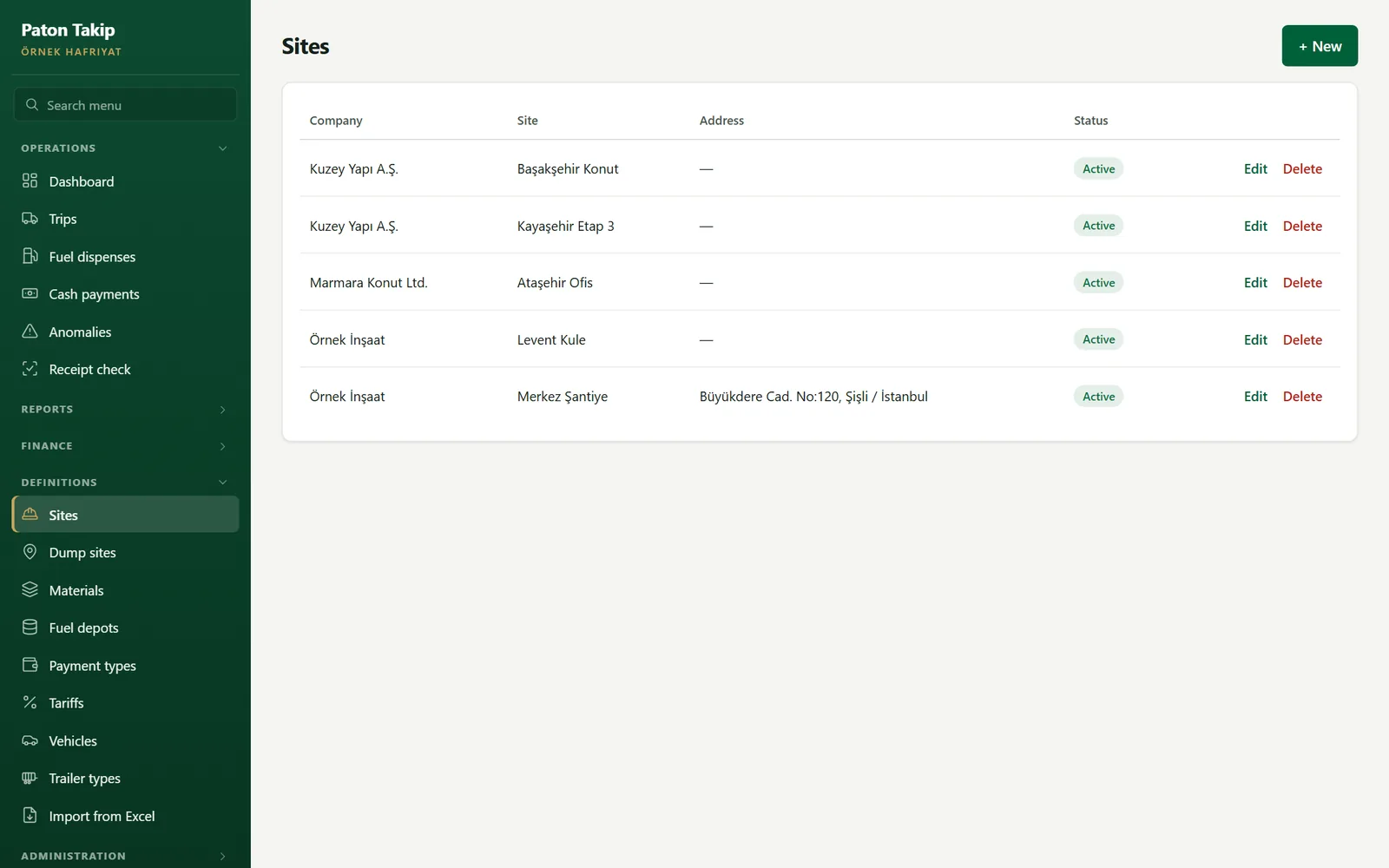
Dump sites, materials and fuel depots follow the same pattern: a name and an order. The order decides which appears at the top of the terminal’s list.
VehiclesMenu › Definitions › Vehicles
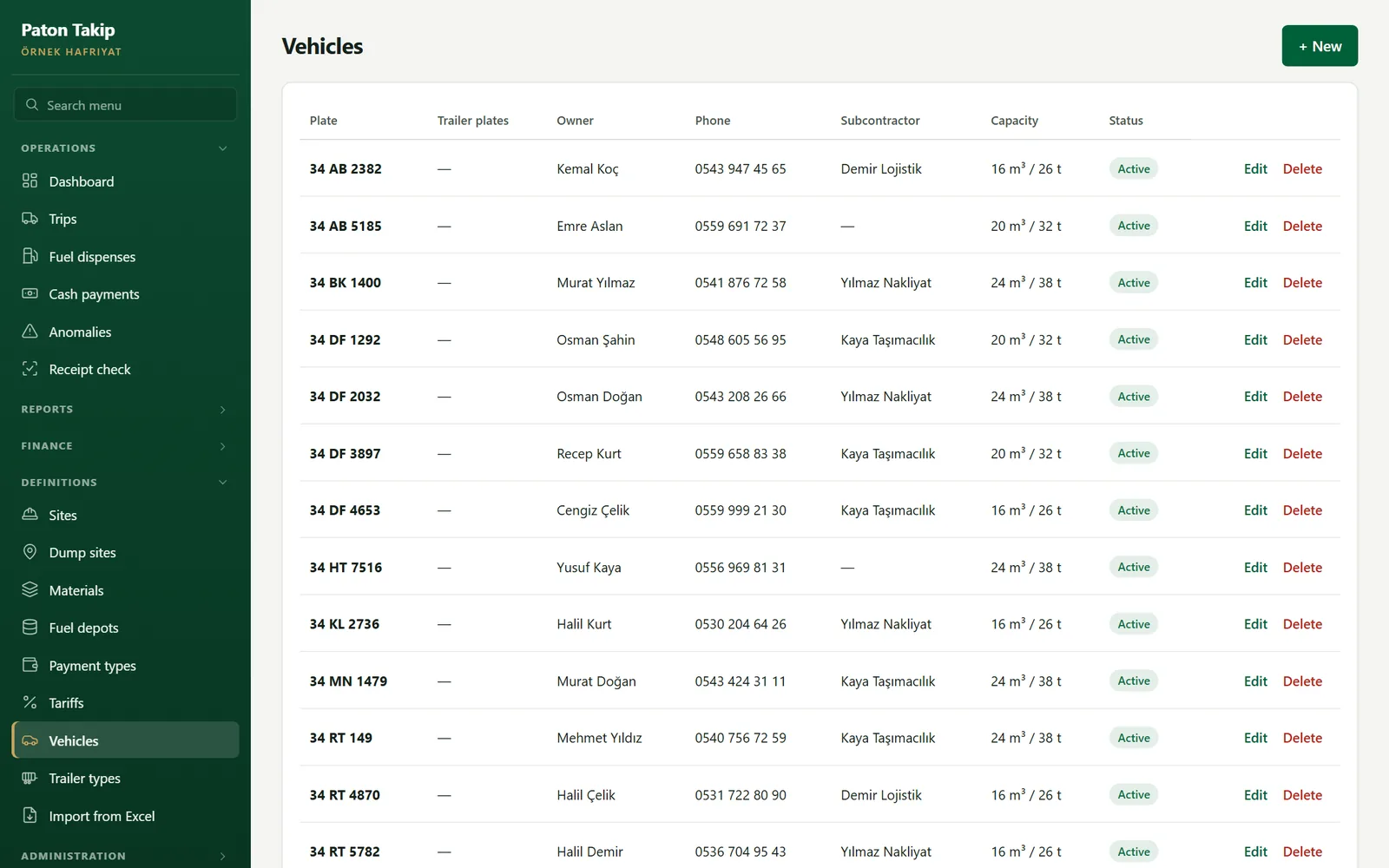
- A vehicle is created automatically with its first trip; its owner, phone, subcontractor and capacity are completed here.
- The subcontractor field is the basis of the subcontractor reconciliation; if it is empty the vehicle cannot enter it.
- Trailer plates are entered separated by commas. If a trailer plate is scanned on the terminal, the trip is recorded against the truck plate (against fuel fraud).
Trailer typesMenu › Definitions › Trailer types
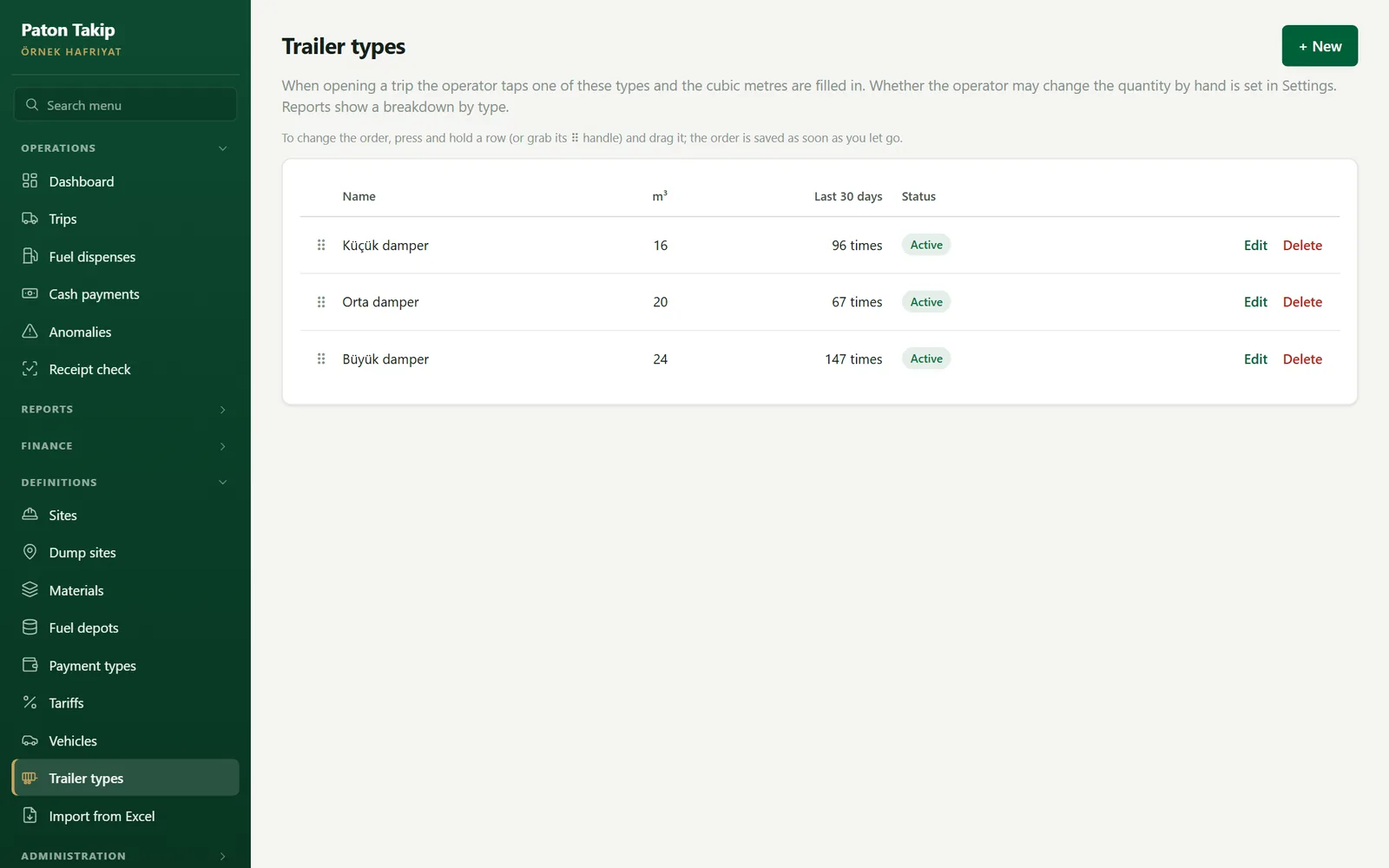
When opening a trip the operator taps one of the types and the cubic metres are filled in; they can change it by hand if needed.
Payment types and tariffsMenu › Definitions › Payment types / Tariffs
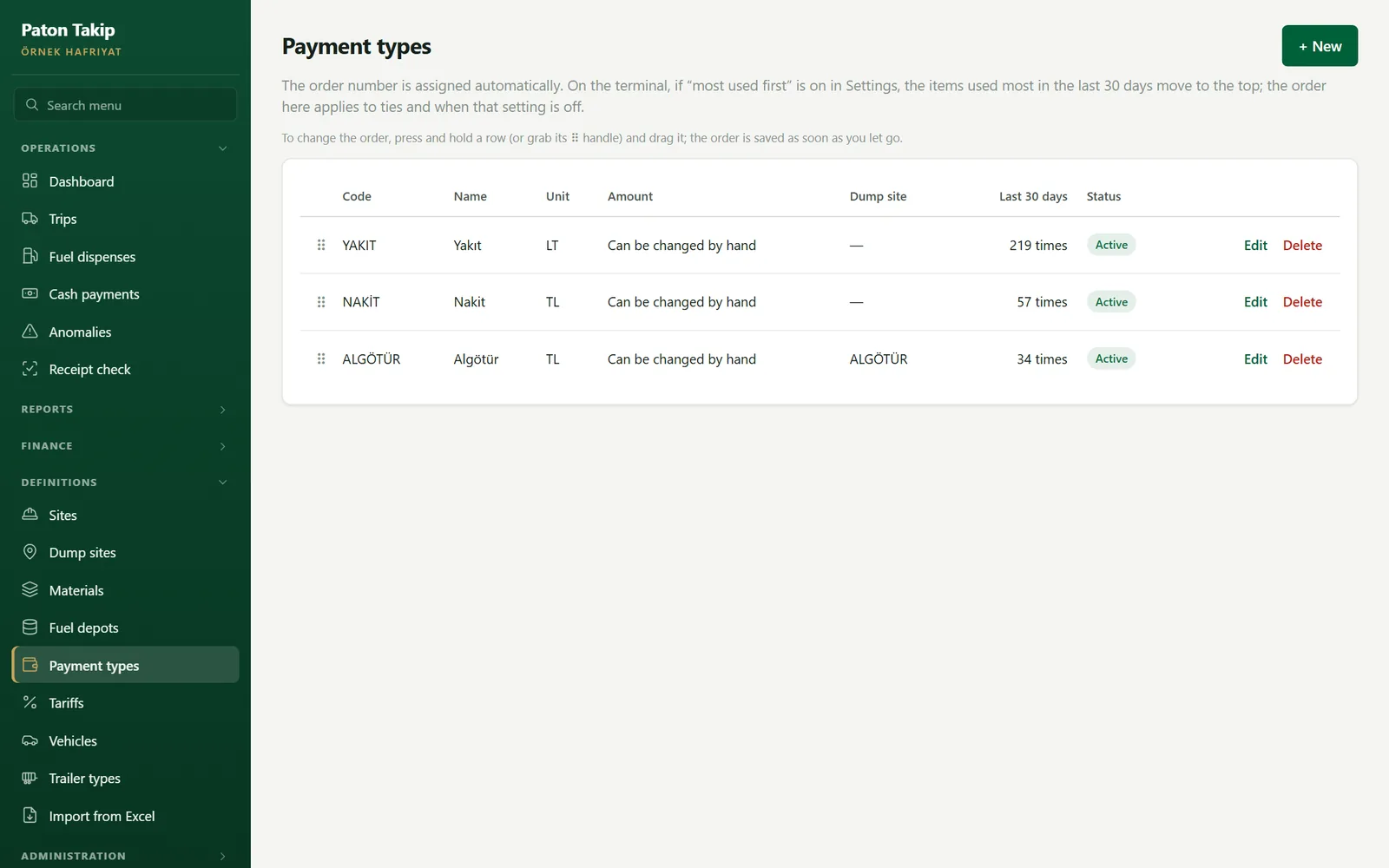
The payment type says what the driver receives for the trip: fuel (litres), cash (TL) or a payment whose amount is set on site (e.g. Algötür). The tariff sets the amount: the operator only picks the type, the amount comes from the tariff.
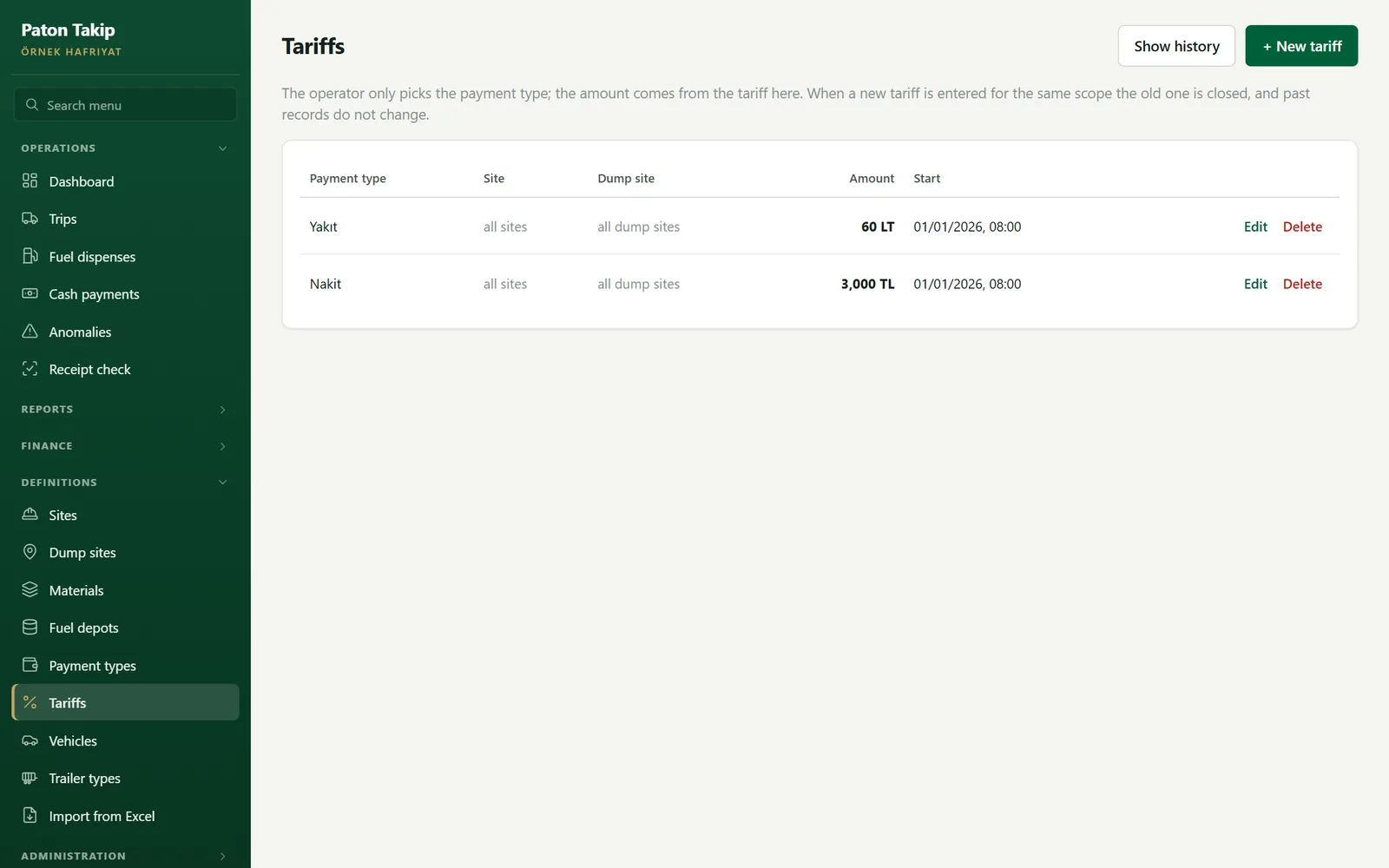
Edit changes the amount or the scope (site, dump site): the old tariff ends at that moment and the new one starts. Delete ends the tariff. In both cases amounts on past trips do not change; old tariffs are listed with their start and end dates under Show history.
Bulk import from ExcelMenu › Definitions › Import from Excel
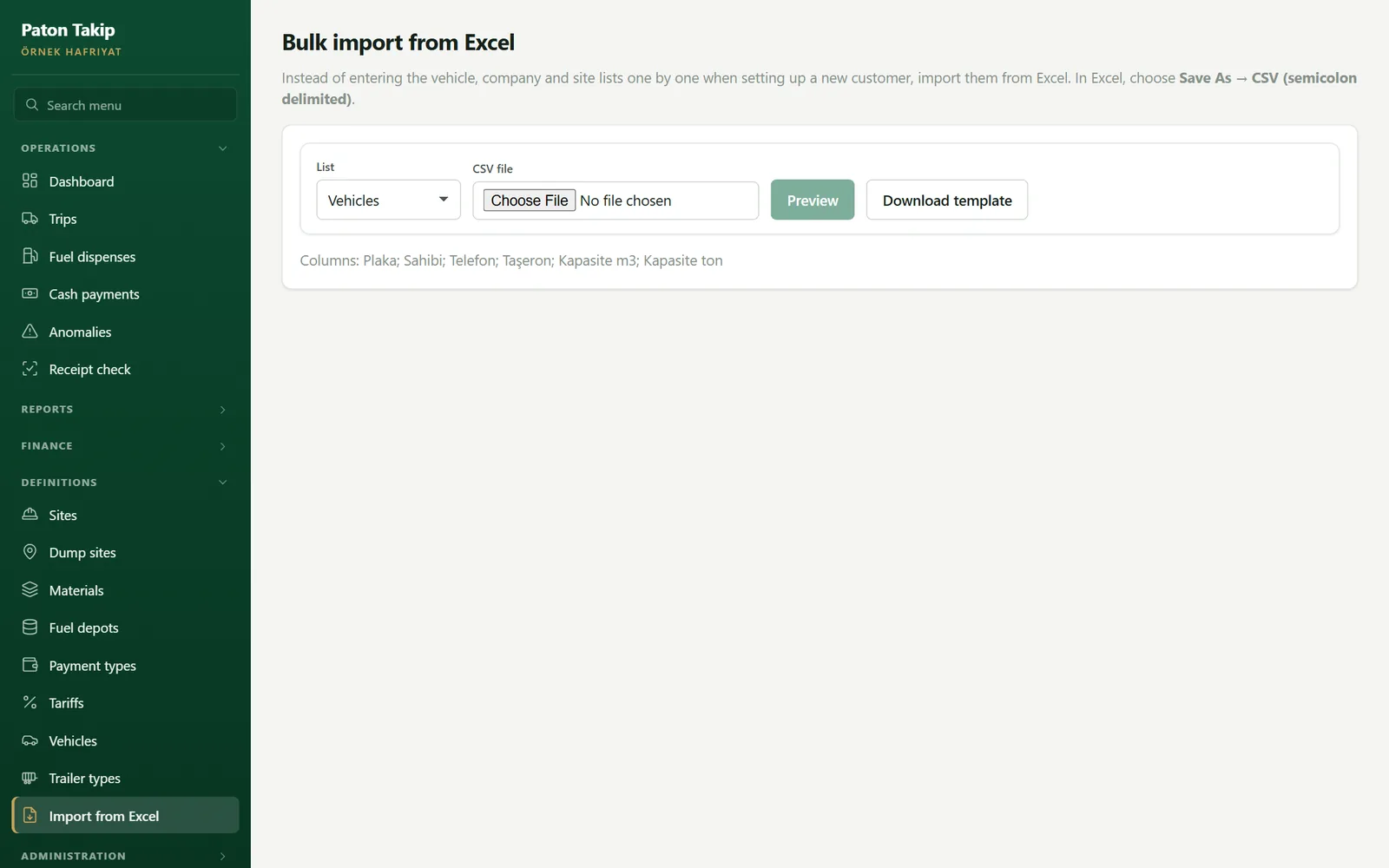
- Choose the list (vehicles, companies, sites…) and get the column layout with Download template.
- Fill it in Excel and save it with Save As › CSV (semicolon delimited).
- Preview: new rows, updates and rows with errors are shown separately.
- If there are no errors, Import. An existing plate/name is overwritten; no duplicates are created.
Administration
UsersMenu › Administration › Users
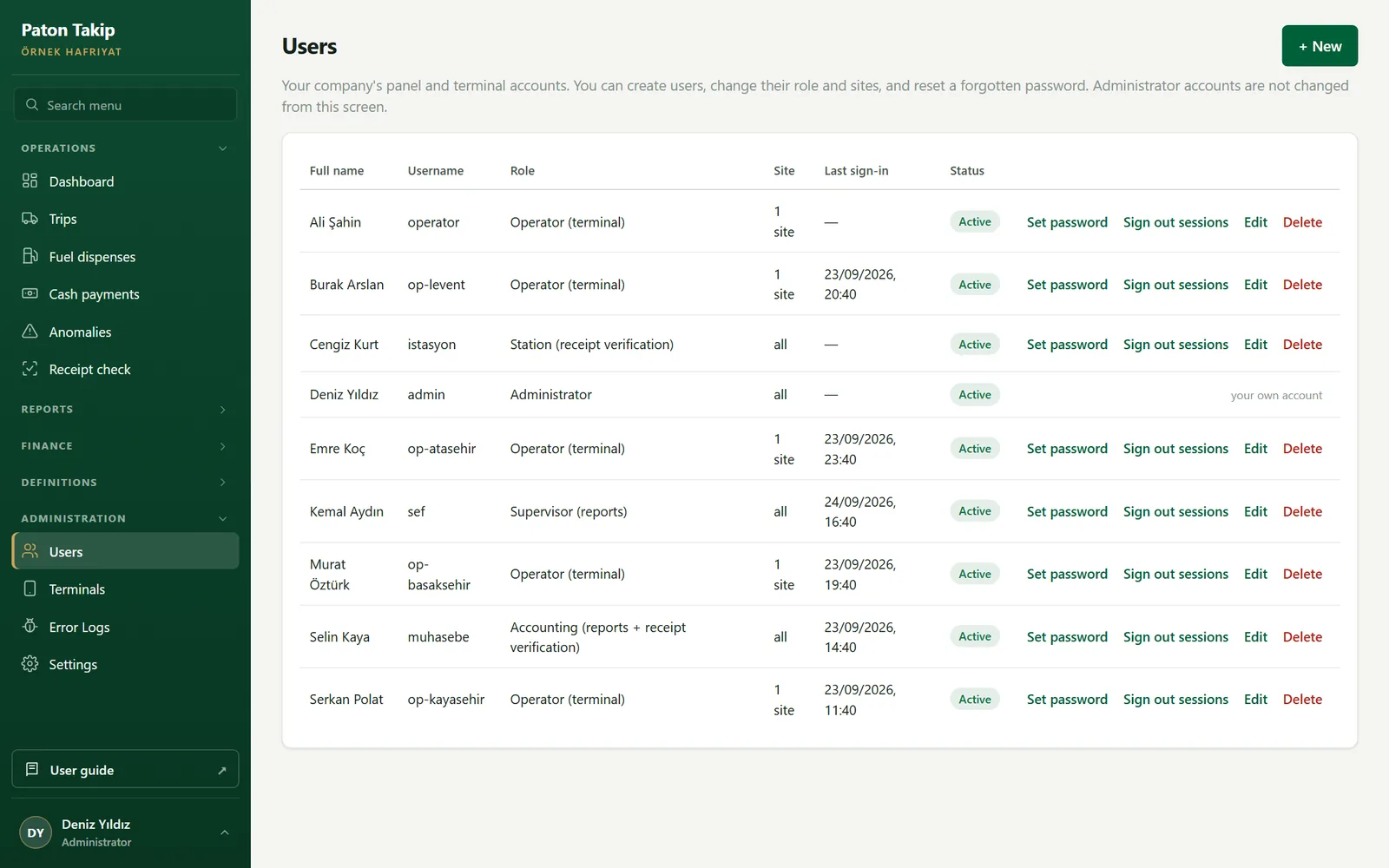
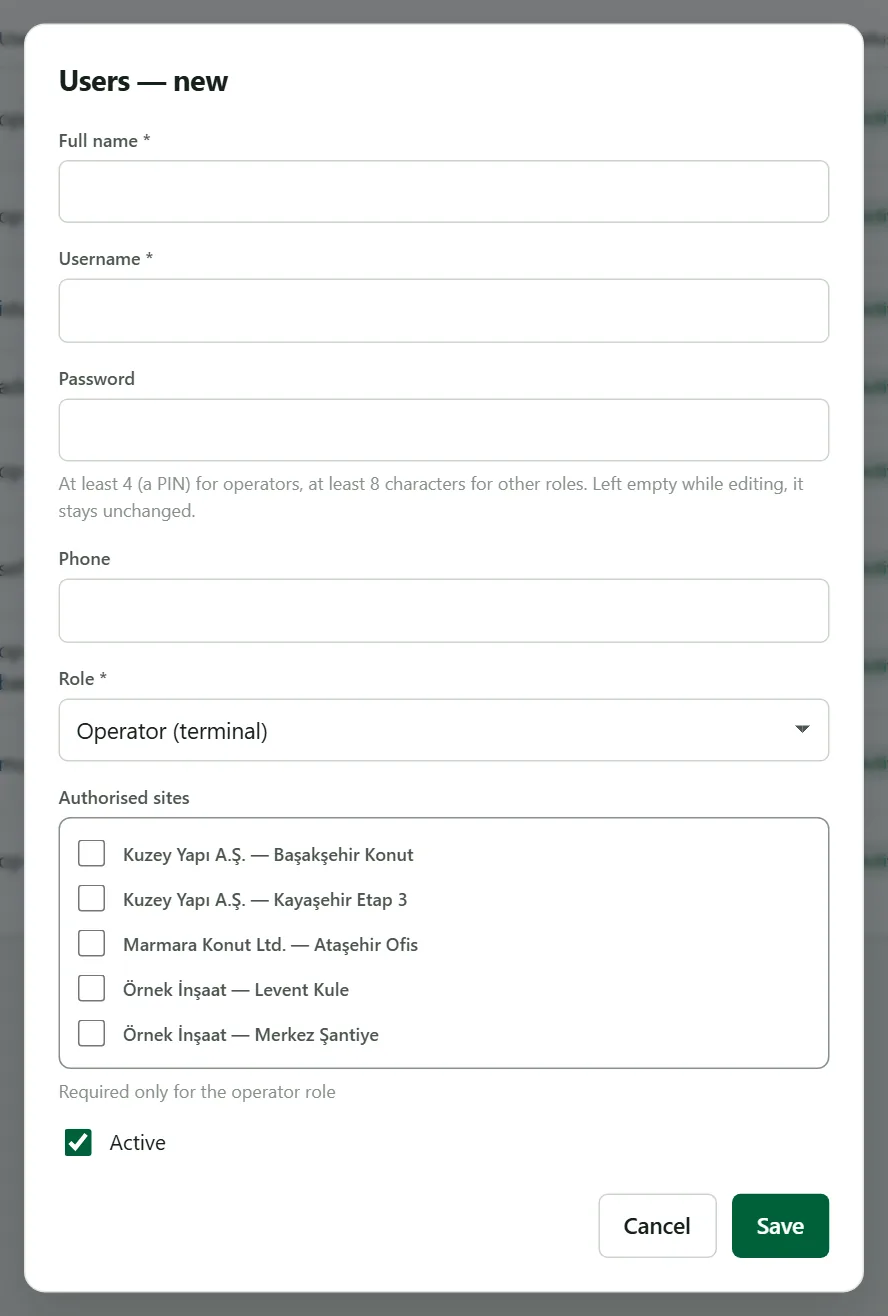
Your company’s panel and terminal accounts: office users, station attendants and operators. Creating accounts, changing roles and resetting forgotten passwords is the company administrator’s job.
 123456
- New user. Name, username, password, role and — for operators — the sites they work on.
- Role. Decides what the user can do in the panel and on the terminal (Roles and permissions).
- Site. An operator can open trips only on the sites assigned to them; other roles see every site.
- Set password. Replaces a forgotten password with a new one; the user’s open sessions are closed.
- Sign out sessions. For a lost phone or a departing employee: every session in the panel and on terminals ends at once.
- Administrator accounts. Your own account and other administrator accounts are not changed on this screen. For your own password use Change my password at the bottom of the menu.
Creating a user
- Click + New and enter the full name and username. The username cannot be changed later.
- Choose a password: a PIN of at least 4 digits for operators, at least 8 characters for other roles.
- Pick the Role. For an operator, tick the sites they work on under Authorised sites.
- Save. Pass the company code, username and password on to the person yourself.
 123
- Password. Left blank when editing, it stays the same; if changed, the user’s open sessions are closed.
- Role. The company administrator role is not in this list; for a second administrator account, contact your application provider.
- Authorised sites. Needed only for operators.
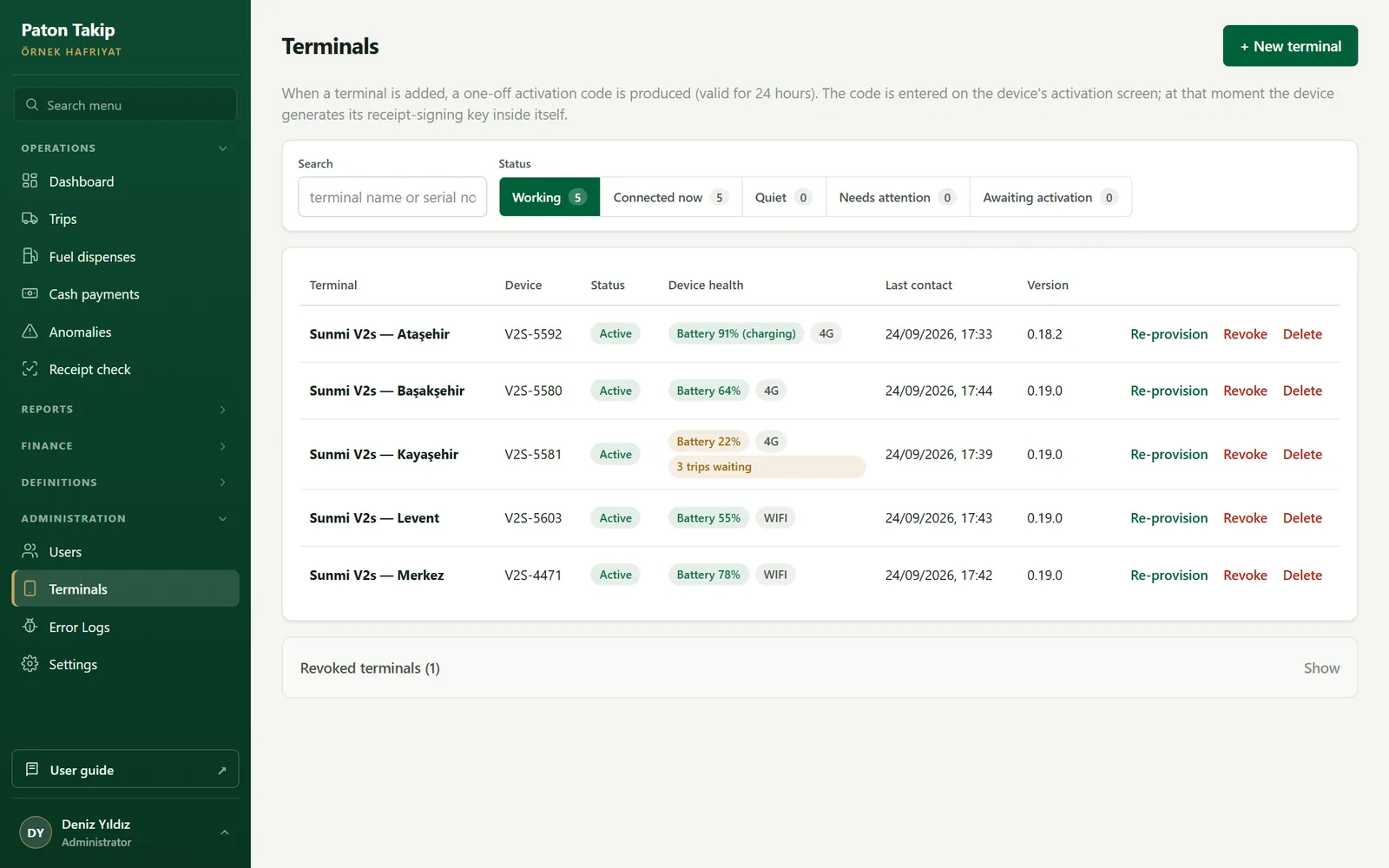
TerminalsMenu › Administration › Terminals
 123456
- New terminal. Generates a one-time activation code and QR.
- Search. By terminal name or device serial number.
- Status filter. Working, connected now, quiet, needing attention and awaiting activation; the number beside each tells you how many.
- Device health. Battery, network, queued trips, printer and clock drift; only what needs attention is shown.
- Re-provision. Generates a new activation code when the device is replaced or reset.
- Revoke. For a lost or stolen device. Receipts it prints from then on are invalid.
Revoked terminals sit in a separate box below the list (open it with Show); their receipts are invalid and their records are kept for history. A terminal that was never used can be removed completely with Delete; a terminal with trips is not deleted but revoked.
Setting up a new terminal
- Name the terminal with + New terminal (e.g. “Sunmi V2s — Başakşehir”).
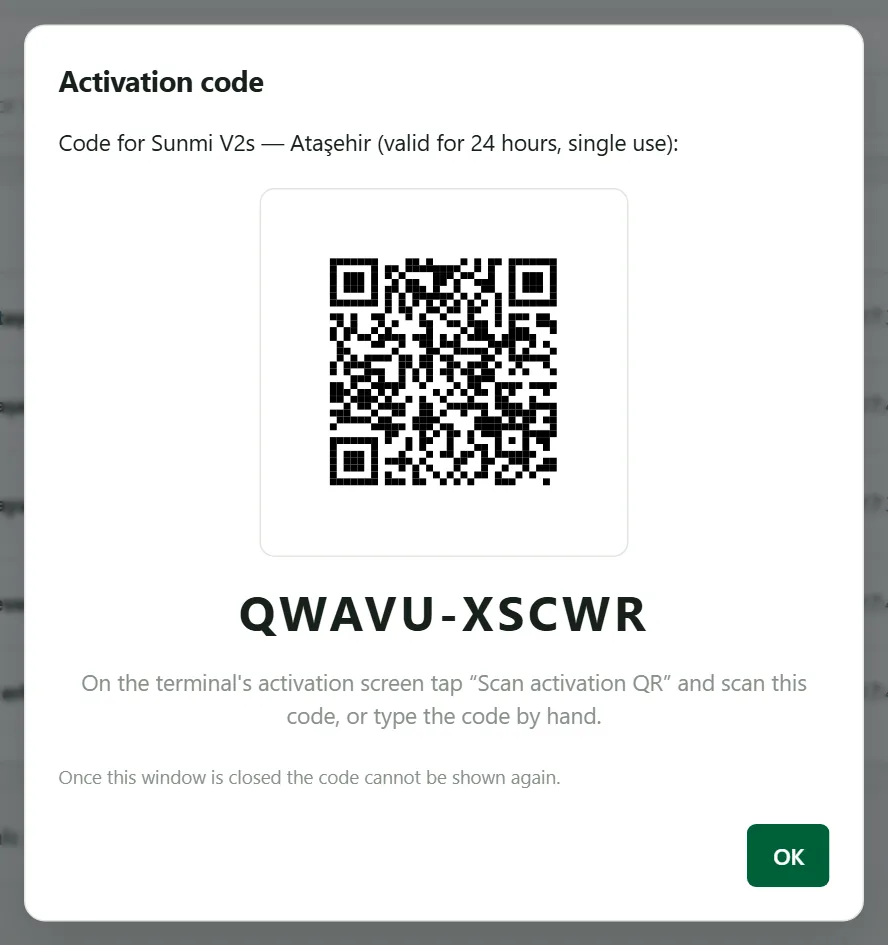
- The activation QR and code appear on screen. The code is valid for 24 hours, works once, and is not shown again after the window is closed.
- Open the app on the terminal, tap SCAN ACTIVATION QR and scan the QR on screen; activation completes by itself. If the QR cannot be scanned, type the code and tap ACTIVATE. The device generates its receipt-signing key internally at that moment.
- The operator signs in with their own username and PIN; the terminal is ready.
 12
- Activation QR. Scanned with the terminal’s camera; it carries the code and the server together.
- Code. Typed on the terminal if the QR cannot be scanned. No need for capitals or the dash; the terminal fixes that itself.
SettingsMenu › Administration › Settings
Every setting here changes how the terminals behave on site. After saving, terminals use the new setting within two minutes at most; a trip screen already open is completed with the old setting.
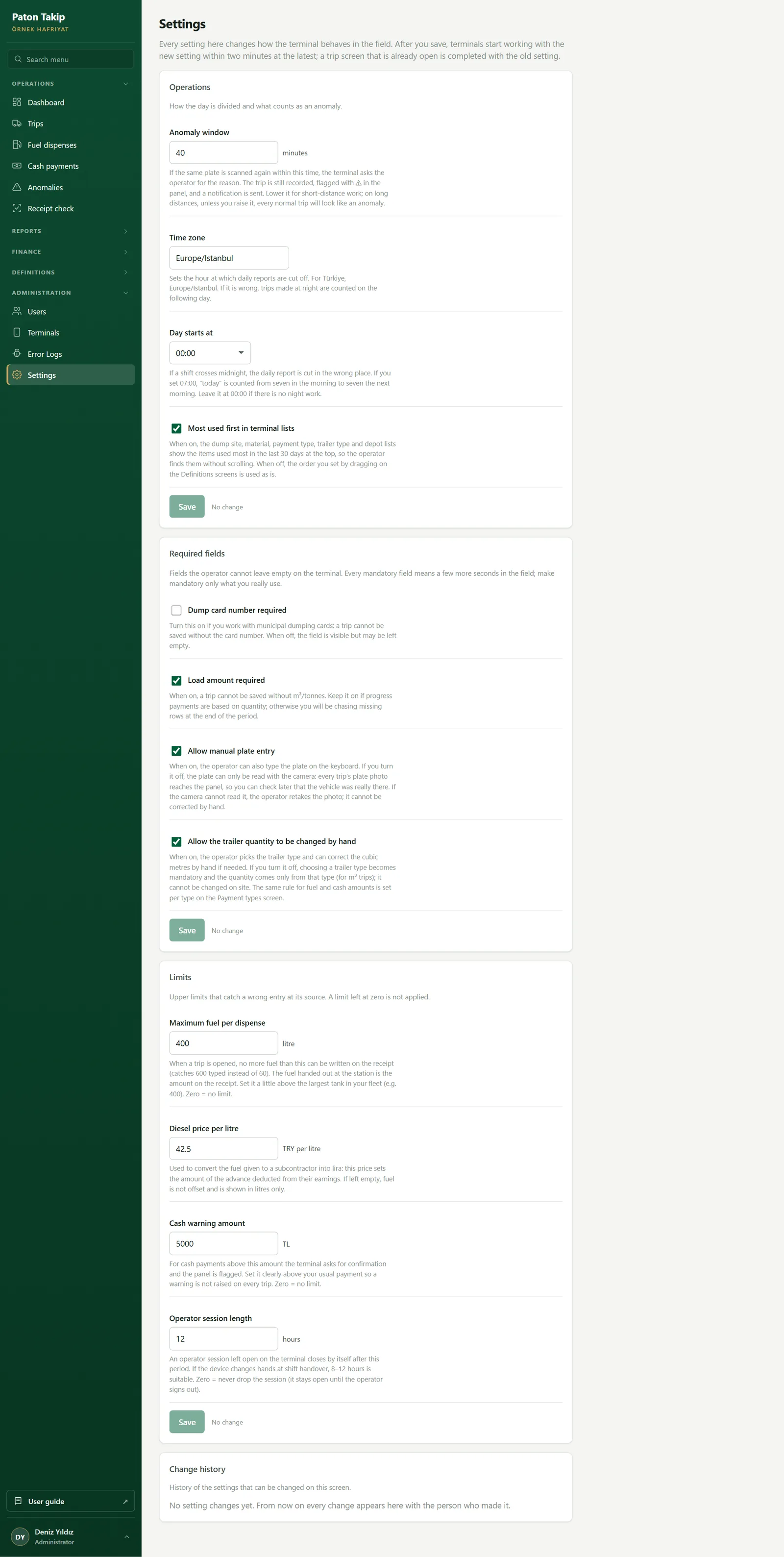 1234
- Anomaly window. If the same plate is scanned again within this time, the terminal asks why. Lower it for short hauls; for long hauls raise it, or every normal trip will look like an anomaly.
- Required fields. Dump card number, quantity hauled, driver name; whether manual plate entry is allowed.
- Limits. Maximum fuel per trip, diesel price per litre, maximum odometer jump, cash warning amount, operator session length. Zero = no limit.
- Change history. Who changed which setting, when, and from what to what.
| Setting | Suggested start | Why |
|---|---|---|
| Anomaly window | 40 min | Should be shorter than a site–dump round trip. |
| Day starts at | 00:00 (07:00 with a night shift) | Where the daily report is cut. |
| Maximum fuel per trip | A little above the largest tank (e.g. 400 L) | Catches 600 typed instead of 60. |
| Diesel price per litre | Current pump price | Converts fuel given to subcontractors into lira. |
| Cash warning amount | Well above a normal payment | So the warning does not appear on every trip. |
| Operator session length | 8–12 hours | If the device changes hands at shift change. |
Additional services and integrations
The following are not settings you switch on in the panel; ask your application provider when you need them, and they are set up and handed over working for your company. Requests: info@patontakip.com
Instant alerts on your phone
Instant news by Telegram or email when there is an anomaly, a terminal that has gone quiet for a long time, or feedback from a terminal. You decide which events go to whom; a site group or a single person.
Scheduled summary report
Every evening (or once a week) at a time you choose, the day’s trips, fuel, cash and dumps arrive in a single message on your phone or by email. You close the day without opening the panel.
Accounting / ERP integration
Your own accounting or ERP software pulls trip and billing data directly with a read-only key; no manual export needed. The key cannot write or delete data.
Additional administrator account
Opening a second administrator account for your company, giving a user administrator rights, or resetting an administrator password. You manage all other users yourself on the Users screen.
Customer company records
The construction companies you work for (the companies billed and tracked in the ledger). Once a company is added, you add its sites yourself on the Sites screen.
Receipt header and logo
The company name, logo and footer on the receipt are part of the contract; your provider applies any change you request and it reaches the terminals automatically.
The terminal on site
The operator only needs to learn one three-step flow; the rest runs in the background.
The trip is opened
The operator scans the plate with the camera or picks it from the list; site, dump site, material and trailer type take a few taps. Choosing the trailer type fills in the cubic metres.
The receipt is printed
The terminal prints the receipt: a large boxed TRIP NO at the top, the date and time and the plate in large type below it, and a ~3 cm QR at the bottom. The QR is signed with that device’s own key and is single-use. The receipt stays with the driver.
The receipt is scanned
Whoever hands out fuel, pays or confirms the dump scans the receipt. If it is valid, the transaction goes ahead and the receipt is closed; if it was already used, a warning appears.
Signing in and choosing the task. On a single screen the operator picks their username, password (PIN), company and site, and chooses the task: Trip operations (scan the plate and print the receipt), Fuel operations, Payment operations or Dump operations (scan the receipt to hand out fuel, pay cash or confirm the dump). With Remember my password on, the password is stored encrypted on the device and filled in at the next sign-in.
Trips and end of day on the terminal
- Tapping the Today’s trips / Total trips tiles opens the Trips screen: a date or date range (Today, Yesterday, 7 days, calendar), search by front or trailer plate, and sorting by tapping a column header. Trips from every terminal on this site are shown.
- Tap a row for the trip’s details; a receipt printed on this terminal can be reprinted with PRINT COPY.
- The menu at the top right has Reprint last receipt, Print end-of-day summary (the day’s trips, payments and dumps, for the shift handover), printer setup and test receipt, appearance (light/dark), feedback/problem report and diagnostics.
- The report icon at the top of the Fuel, Payment and Dump screens lists the transactions made on that terminal by date and plate; the summary can be printed as a receipt.
- A trip cancelled in the panel also shows as cancelled on the terminal and is left out of the end-of-day summary.
In the background
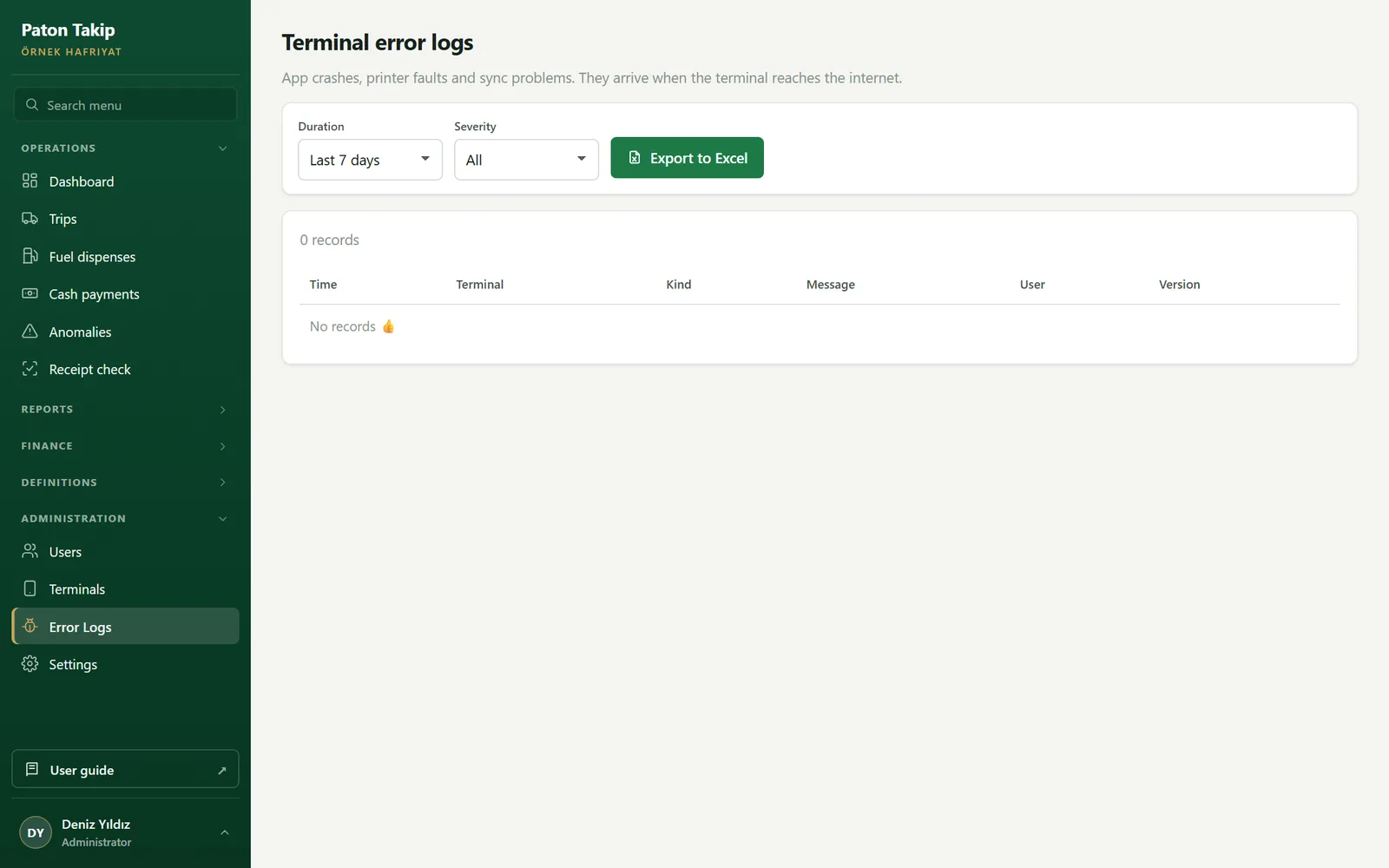
- If the same plate comes back quickly, the terminal asks why. The operator’s note appears next to the anomaly in the panel.
- With no signal the terminal keeps working; records wait on the device and are sent automatically once connected.
- Updates: terminals download and install new versions themselves (on some devices the operator has to tap Install once). A device below the minimum version cannot open trips until it is updated; nobody has to tour the sites.
- Photos and evidence: the frame taken while reading the plate and the frame of the receipt scanned during fuel/payment/dump are sent to the panel with their location once connected.
- Location permission: when Android asks, choose Precise location; with “approximate” the position can be kilometres off.
FAQ and troubleshooting
Billing shows a “price could not be resolved” warning.
The subcontractor reconciliation warns about “vehicles without a subcontractor”.
A terminal shows as “quiet”.
A user forgot their password.
The company administrator forgot their own password.
The terminal’s location is wrong or missing.
How do I fix a fuel dispense entered by mistake?
A terminal was replaced or reset; how do I connect it again?
A terminal was lost or stolen.
Glossary
- Ageing
- Sorting open receivables into buckets by how long they are past due.
- Anomaly
- The same plate taking a second trip within the window set in Settings. The record is not deleted; it is reviewed and closed with a note.
- Dump confirmation
- The dump site attendant scanning the receipt to record that the truck actually entered the dump.
- Location finding
- A trip opened or confirmed outside the usual location of the site or dump site.
- Progress billing
- The monetary value of the work done in a period, to be invoiced to the customer.
- Receipt
- The signed, single-use proof of a trip. Fuel, cash and dump transactions are done by scanning it.
- Reconciliation
- Comparing what the subcontractor has earned with the advances paid, and agreeing on the balance.
- Specificity
- The score that decides which unit price applies when several match a trip.
- Tariff
- The amount of fuel or cash handed to the driver on site.